Archived from the Bravo community forum (2021–2026). Some answers may refer to older versions of Bravo.
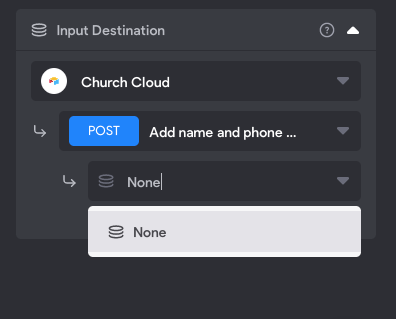
I've been experimenting with data binding for a few days. I created a post request API successfully, with data being sent to my Airtable database. But when binding the binding element to the text layer of my form, i only have the option "None" as input destination. I do not know what to do. I am blocked.
12 replies
👋 I'm still new to this, and completely open to anyone pointing out inaccuracies in what I'm about to outline (it will help me too!) but from what I gather, the steps for setting up Bravo to use APIs should be generally done in the order I outline below, and while you seem to be on Step 6 (Bravo > App > Data Binding), if you're not seeing anything, that means you might not have not yet done Step 5 (Bravo > API Collection > Received Data & Selected Data) or some series of steps before it.
- Brainstorm the workflow - both the user experience and the API requests and returns (takes some time getting used to Bravo abilities and limitations)
- Design the Figma/XD screens with the appropriate tags.
- Go to your backend and create the API endpoints (Xano/Backendless/Airtable/Custom).
- You will know you are are ready to continue when the debugging features of those apps work as expected (e.g. when a request is sent, an expected response is returned)
4. Go to Bravo API Collections and create an API collection if necessary. Add endpoints from Step 3 if not automatically imported.
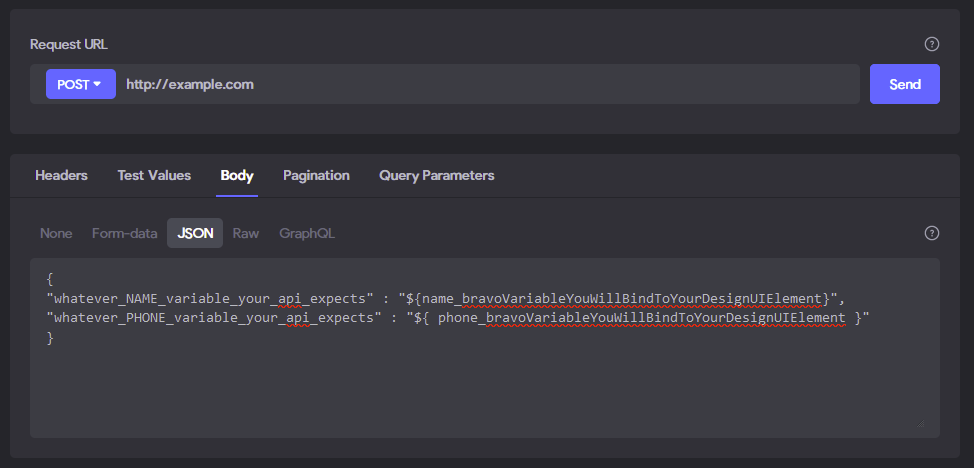
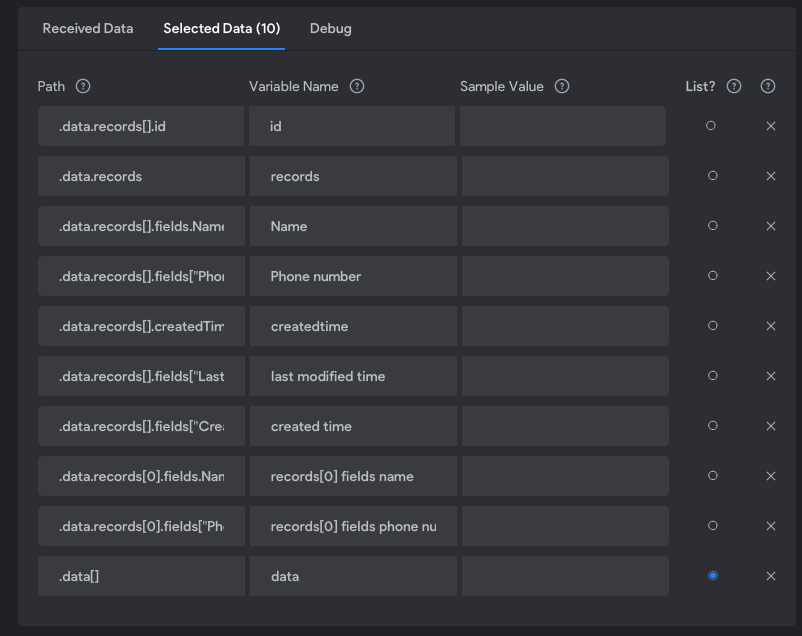
- If your endpoints need it, configure the extra HTTP stuff for each endpoint (Headers, Body, Pagination, Query Params) with variables like ${name} and ${phone}. If you want to send a JSON object, choose Body, then JSON tab, then something like this if your endpoint is expecting this naming convention:
Give test values for those variables in the Test Values tab like:
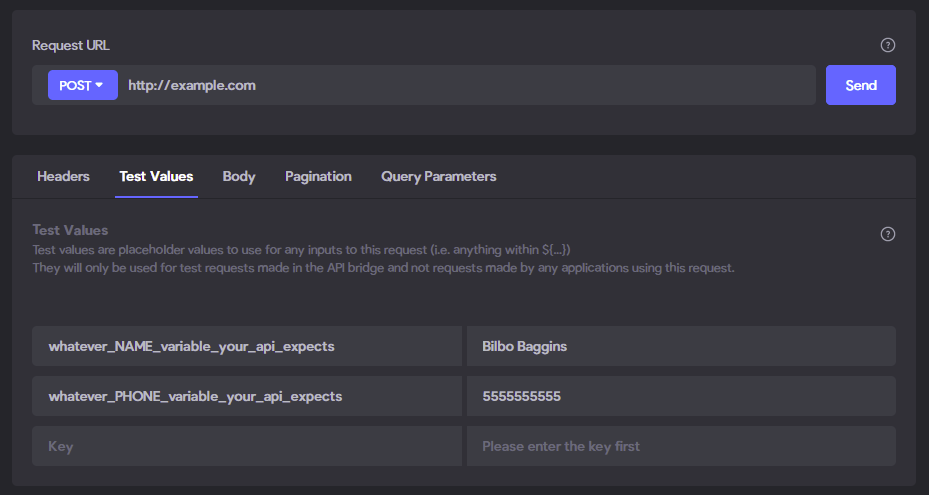
or you won't be able to continue. Click Send to see if you can get data back (hopefully your API returns something).
- If it returns the same kind of values you saw in Step 3, continue.
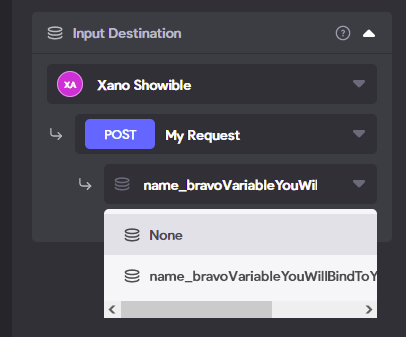
Note: These variables will be available later in Bravo > App > Data Binding > "Input Destination" section where we send data from our app to our database.
5. Still in Bravo API Collections, setup your returned values.
- In the Received Data tab, check mark the stuff you got back from the API in Step 4's test values tab that you'll need in your workflow from Step 1. Checkmark the List boolean if it's an array/list.

- In the Selected Data tab, you can rename those items with a variable name of your choosing that can be bound to UI elements.
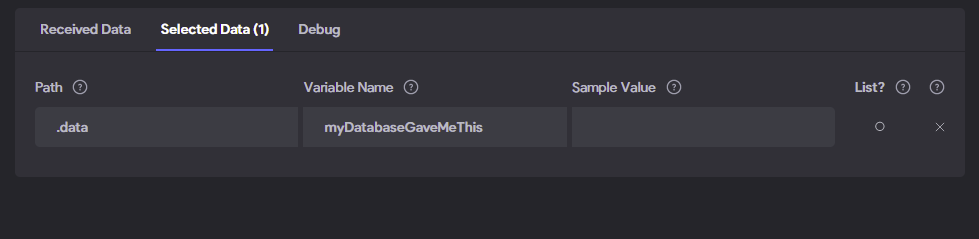
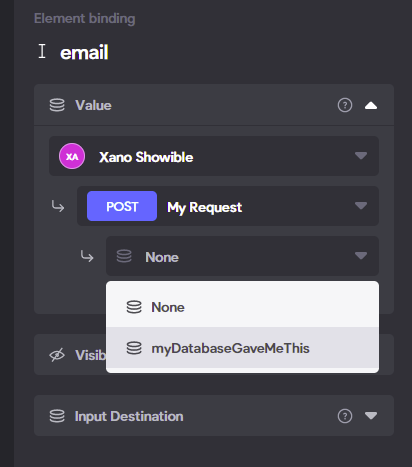
- Note: This variable in later steps will be available in the Bravo > App > Data binding > "Value" section where you receive data from the backend and show it to the user.
6. In the Bravo Studio app section, click on your app and click the Data Binding tab.
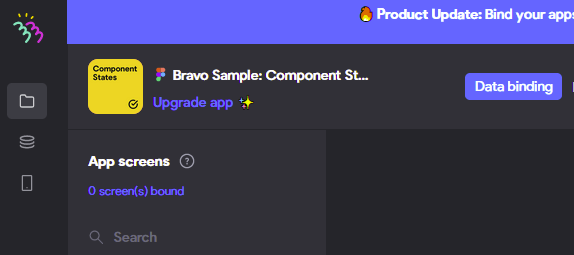
- STEP 6A: In the lower-left Data Binding element outline (which shows elements from your design file. Don't be too shocked when it seems nested in a different way from your design file.
- You MUST FIRST SELECT EACH INPUT FIELD, ONE BY ONE in your design's form. Some people use an `*name` format in their original design to help them later find which thing to select.
- Once a UI item is selected on the left, on the right-side, you will see options for Value, Visibility, or Input Destination. If you do not see those, you did not use [input:] tags on that element. Fix your design. Refresh.
- If you're trying to RECEIVE something from your database, you want Value. (For example, you want an element to show the user's name.)
- If you want SHOW/HIDE a UI element based on the Database, you want Visibility. (For example, you want to show a like or unliked image.)
- If you want to SEND something to your database, you want Input Destination. (For example, you want to post a form with data.)
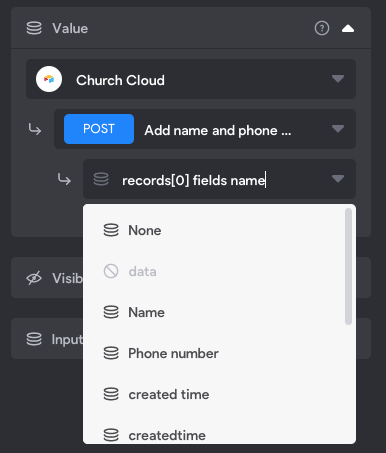
- If you setup Step 5 correctly, here in Input Destination, you will now see name or phone as items in the drop down (as in your screenshot) that you can select to send.
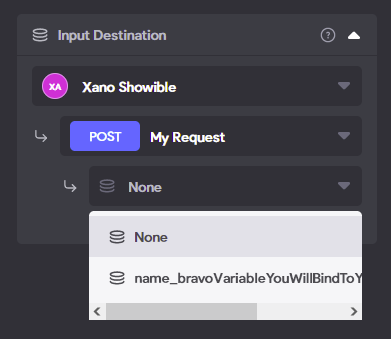
- STEP 6B: Select the remote action UI element in the lower left Data Binding hierarchy which will have a little lightning bolt. (For example, a submit button with an [action:remote] tag or maybe [action:login] that is inside the same form group as the input elements from Step 6A.
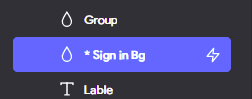
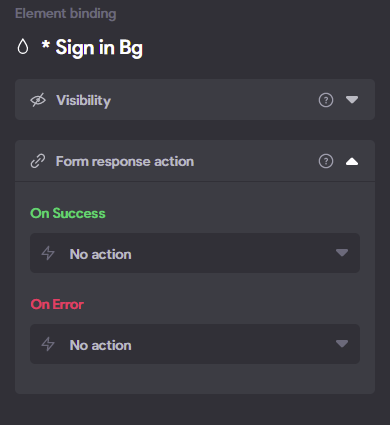
- If you have done Step 6A correctly, and correctly selected the action element, you will now see on the right side of the screen 3 options: Initial State (sometimes), Visibility, and most importantly, "Form response action". (If you can't expand the Form Response action, you did not do Step 6A for Input elements yet.)
- Form response action has two sections: On Success and On Error. Set these up to do whatever you want based on whether the user's request caused by the submit successfully
7. Test it in the Bravo Vision mobile app. If it doesn't work, go one by one through these steps to make sure they work.
- If it doesn't work, maybe the workflow you're trying is not supported by Bravo, or maybe it's a bug.
I've created numerous apps for religious organizations using Bravo. If you're willing to hop on a free Zoom call, I would love the opportunity to walk you through it!
thank you for your contribution.I think i did step 5.
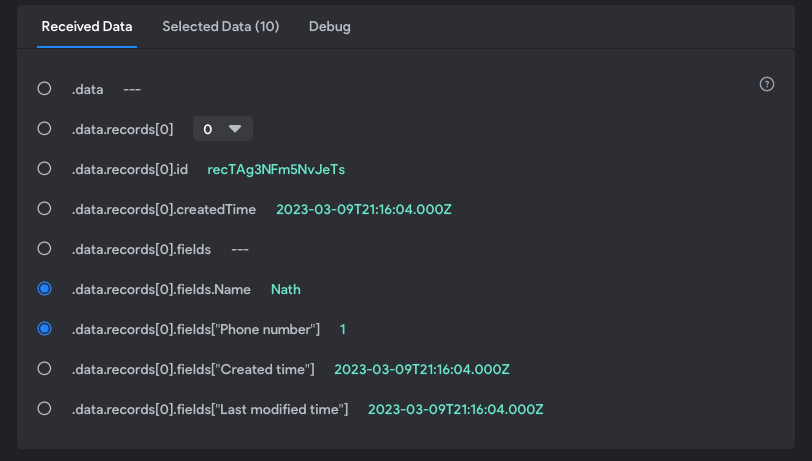
As you can see in the photo above. I have an answer to the request. But the problem is that the binding elements don't appear in the input destination fiels While they appear in the "value" area as specifying in this following image.
Thank you Andrey,
I do not master English. I speak fluent French, is it not likely to be an obstacle ?
Can you show me your Selected Data tab also?
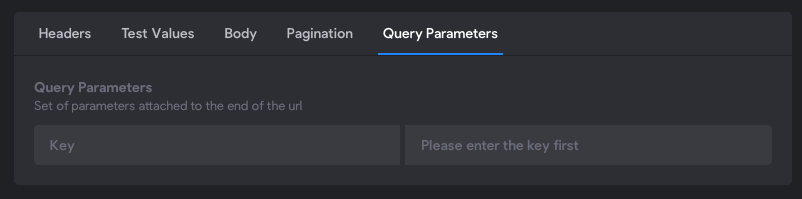
Also lets look at what you're submitting to your POST endpoint. Go to API Collection, screenshot the Body and Query parameters.
Make sure this step is followed.
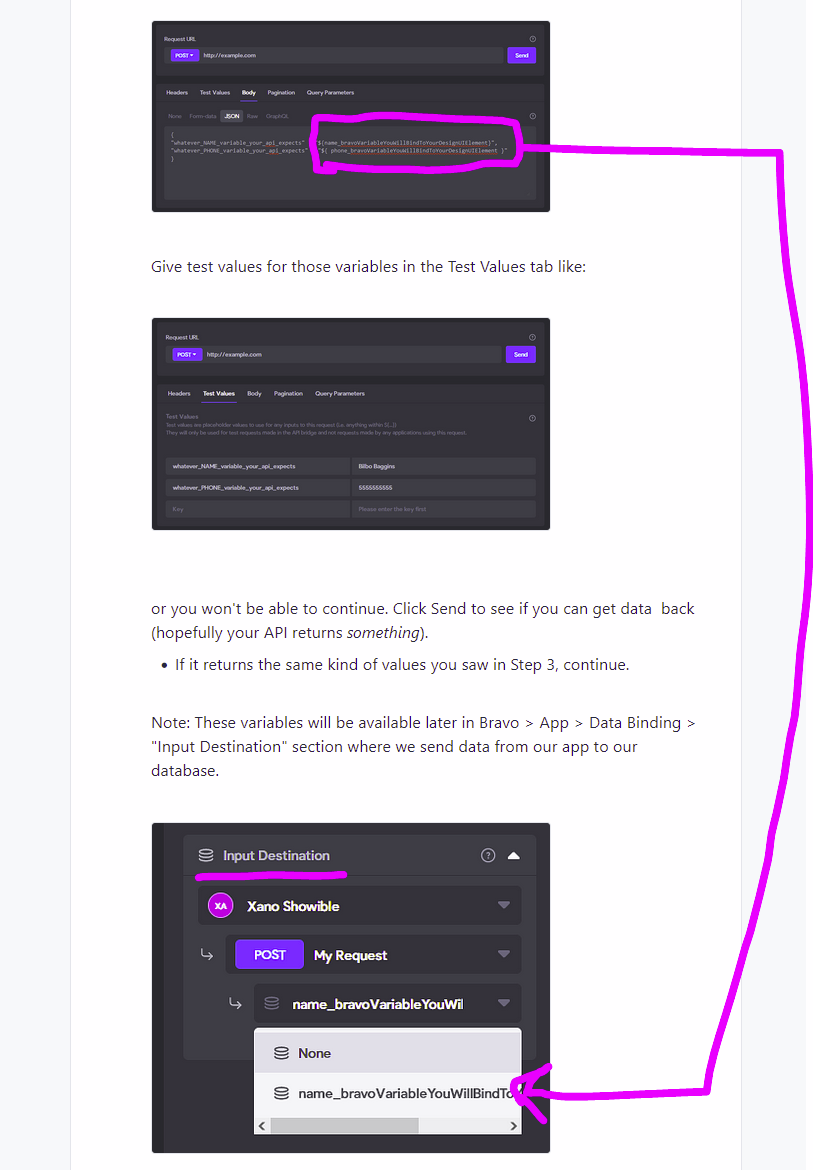
this is my selected data tab
this is the body request
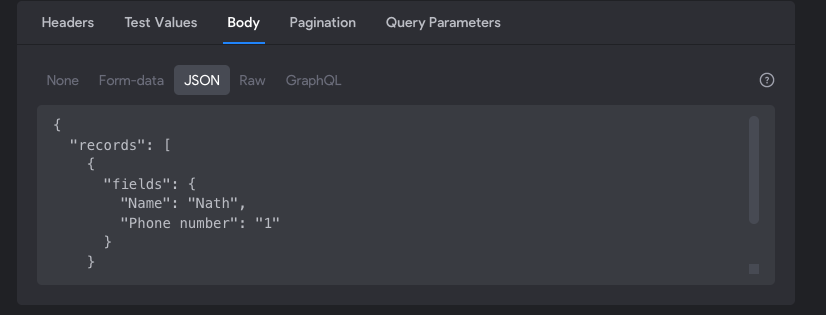
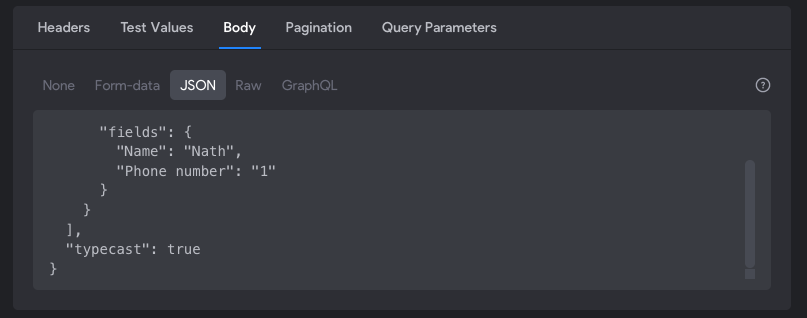
I don't know what to put in the query parameters
It probably would. Could you take some screenshots of your API setup? I can edit your pictures that you send me to show the proper things that you need to select
This is the part I pointed out where you need to fix it. Notice that you don’t have any variables like ${inputStuff} on the right side of your JSON object? See what happens if you change that name line to look like this:
“Name” : “${nameComingFromAppFormInput}”
After you do that, I think you’ll see nameComingFromAppFormInput as an option in your drop-down on the data-binding page.
Wrote something in this thread and want it removed? Request removal
Ask the community on Discord
This archive is read-only. New questions, office hours and product updates now happen in the Bravo Discord.
Join the Discord