Archived from the Bravo community forum (2021–2026). Some answers may refer to older versions of Bravo.
{
"records": [
{
"fields": {
"enter_group_name": "${enter_group_name}",
"group_image": [
{
"url": "${group_image}"
}
],
"when_do_you_meet": "${when_do_you_meet}",
"location_city": "${location_city}",
"spots_available": ${spots_available},
"bio": "${bio}",
"enter_email": "${enter_email}"
}
}
]
}
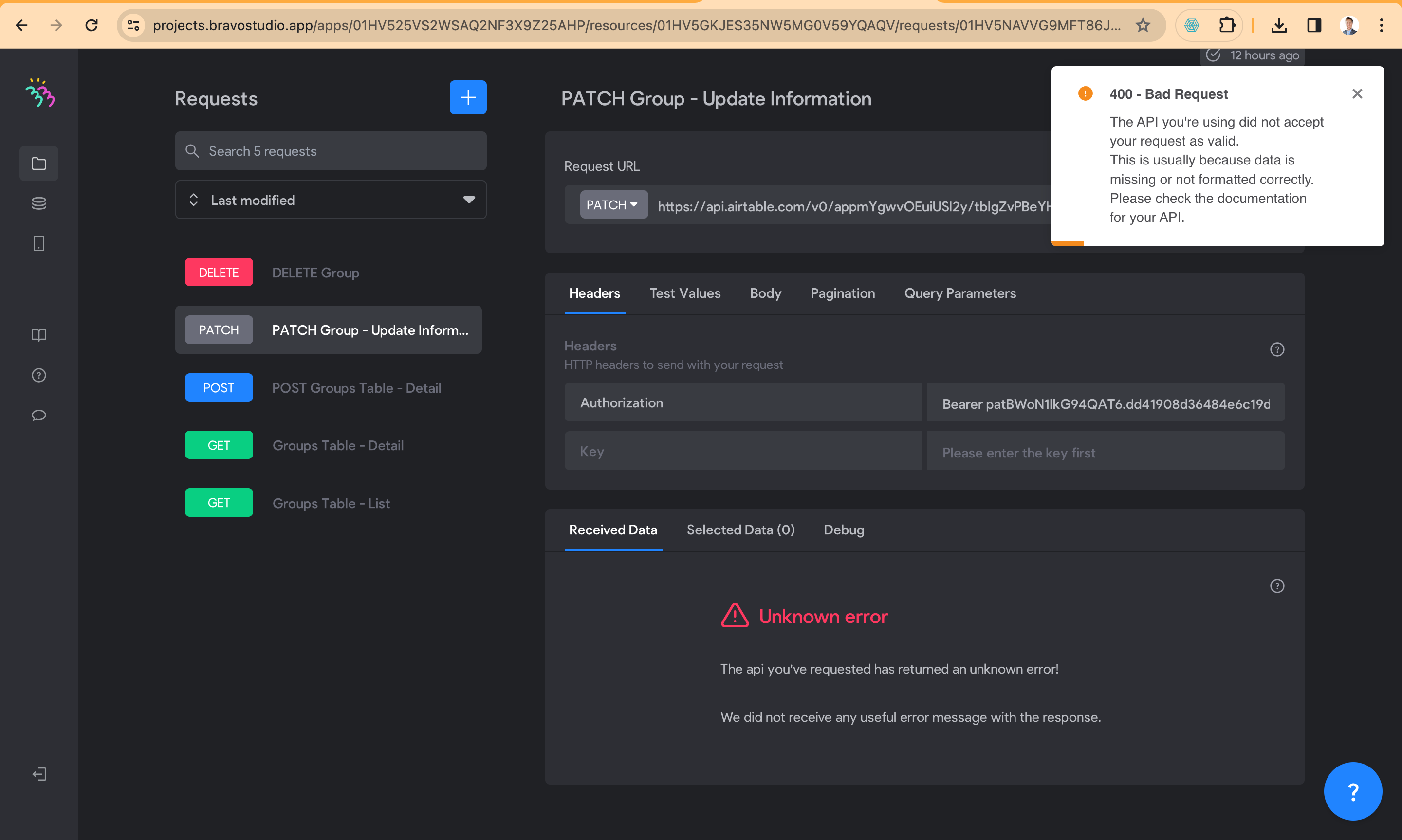
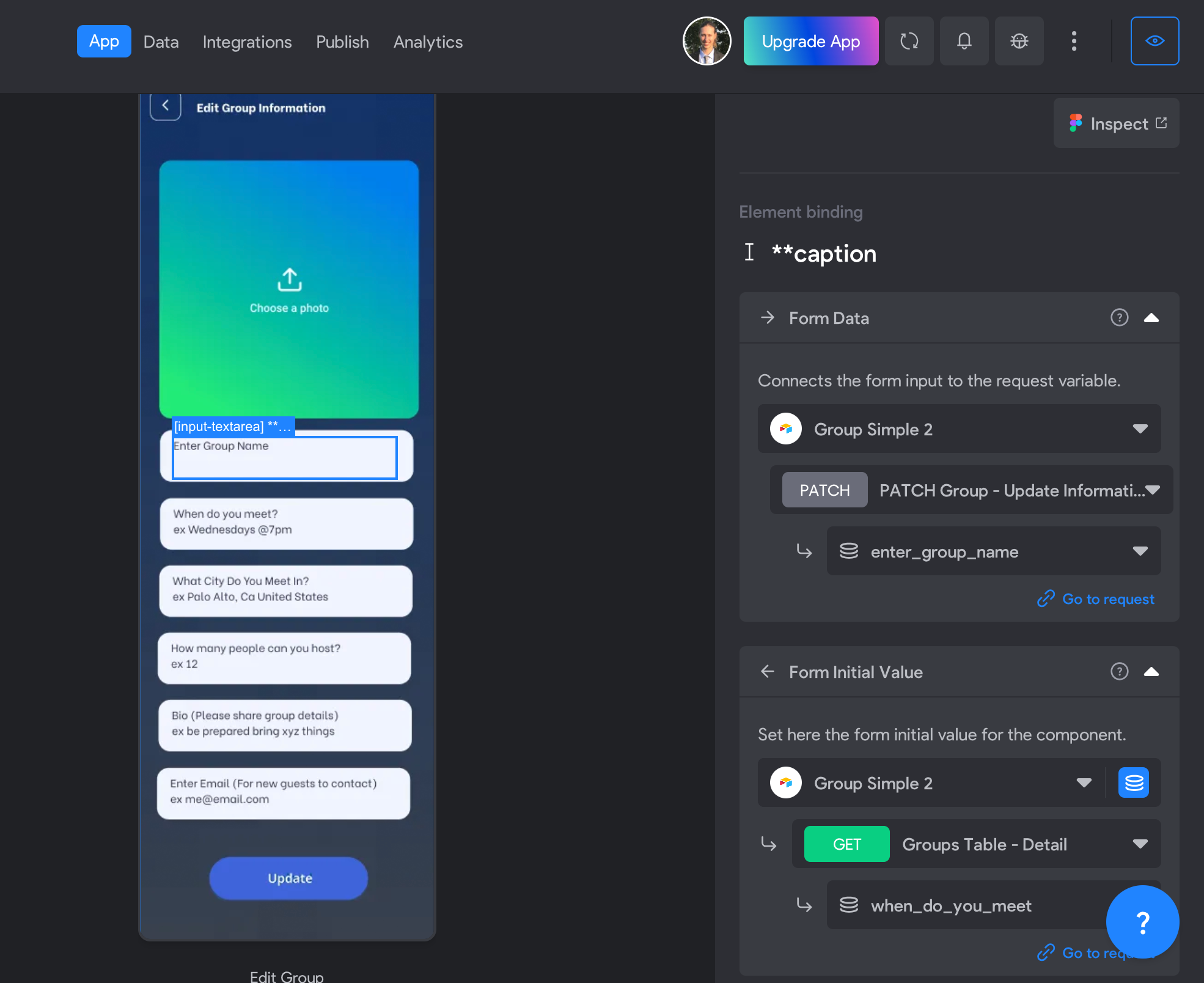
I have the data binding like this
4 replies
To help you, share your Airtable with me
It all depends on the configuration of the GET list, the Post, and the formula to use to be able to configure the patch.
To correct this, we will start with Airtable. We will add a formula to the relevant GET list and modify the selected data.
Then, in the JSON of the Post, we will verify the corresponding ID. Finally, for the patch, the ID must be linked to the GET LIST.
I did these changes in 2 projects
1. called “Group Simple 2”
https://airtable.com/appmYgwvOEuiUSI2y/tblgZvPBeYHMWph1V/viwPVHD9vAD87qx38?blocks=hide
2. called “Group”
https://airtable.com/appZEfE1myLqiXhTf/tblyoqC6CRgXFNNMc/viwWPoSRfb0MZEpwL?blocks=hide
Additial Project URL if needed
1. Group Simple 2 https://projects.bravostudio.app/apps/01HV525VS2WSAQ2NF3X9Z25AHP/screens/01HV53W15QY01FD77V3YNWQ8N5/bindings
Hello !
Airtable: https://airtable.com/appAmzfMjvYbtlNoZ/shrKWzerJlKUTGpbs
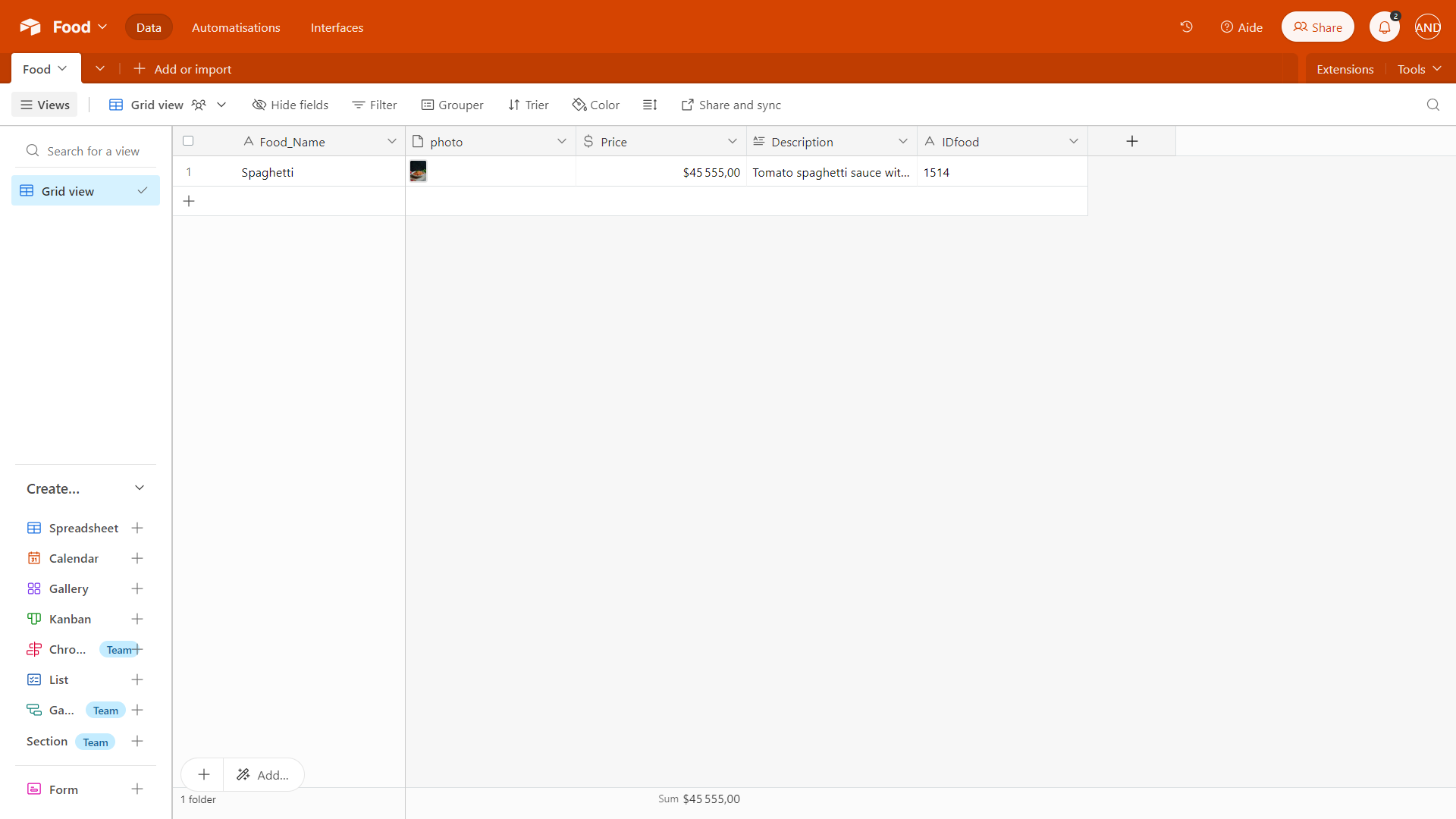
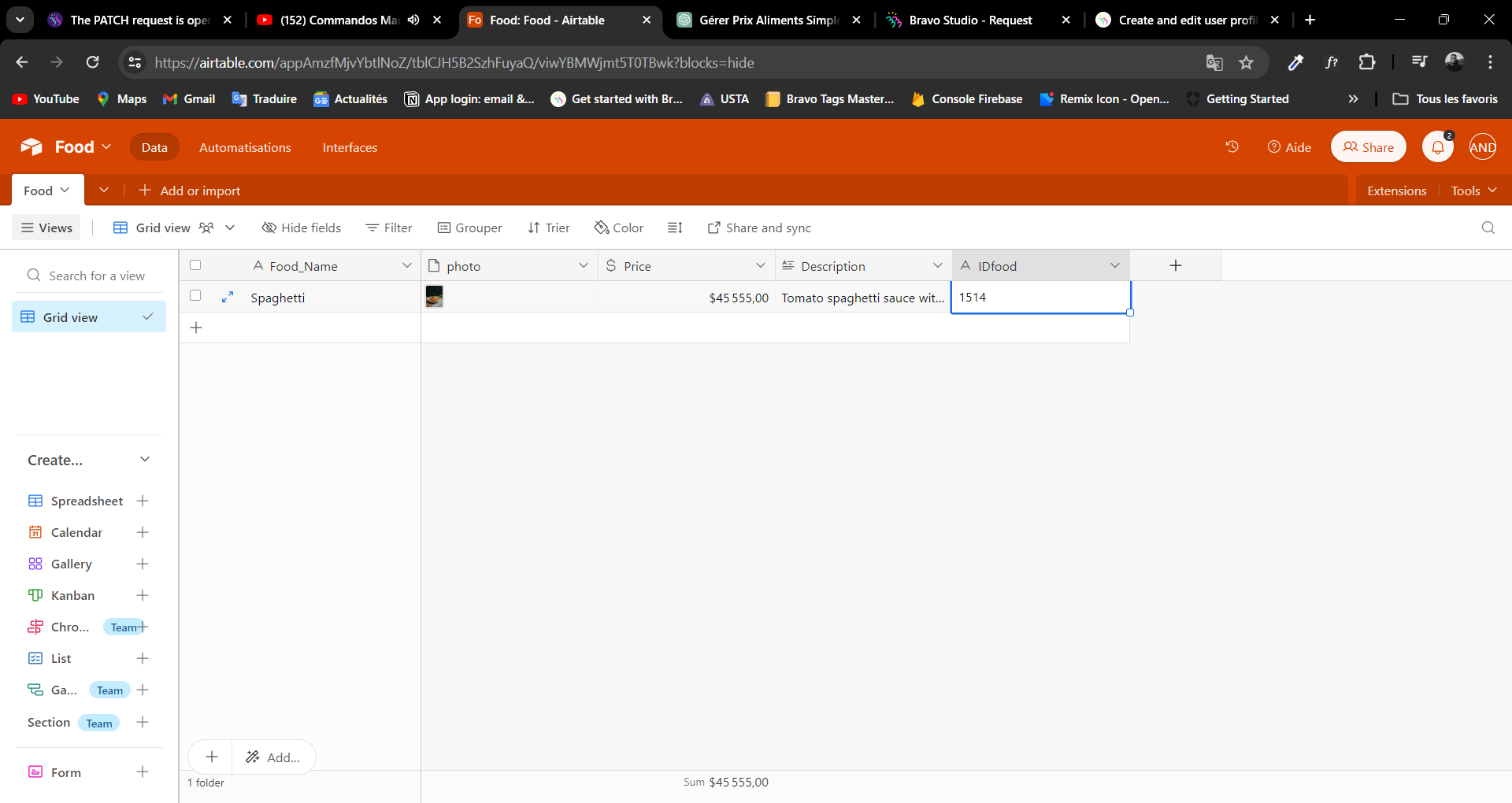
Imagine a restaurant business managing a list of food items for sale, with prices that may change periodically. For this purpose, we will use an Airtable database named "Food". Within it, each entry will include the following:
Food Name: Food_Name
Food Photo: photo
Food Price: Price
Food Description: Description
Food ID: IDfood
To be able to update prices or other information about a food item, we will need the following features in Bravo Studio:
GET LIST Food: This function will retrieve the list of food items available for sale and make it visible in the app for the user (the client).
Post Food: This function will serve as a dashboard or form for the manager to input the name, price, description, etc., of the item, all linked to a specific ID.
Patch Food: This function will be used to update data while taking into account the ID of the food item whose information is to be changed.
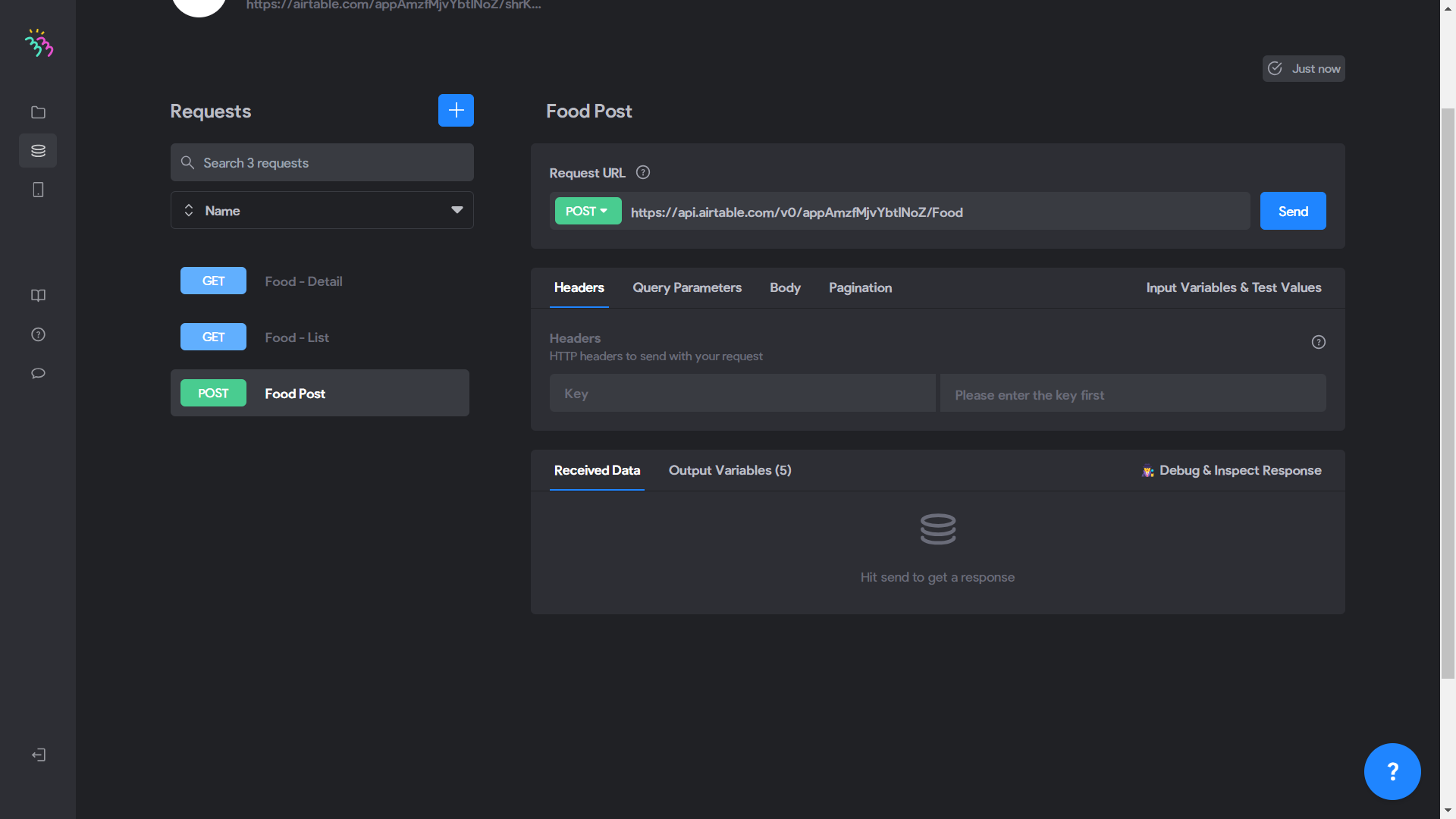
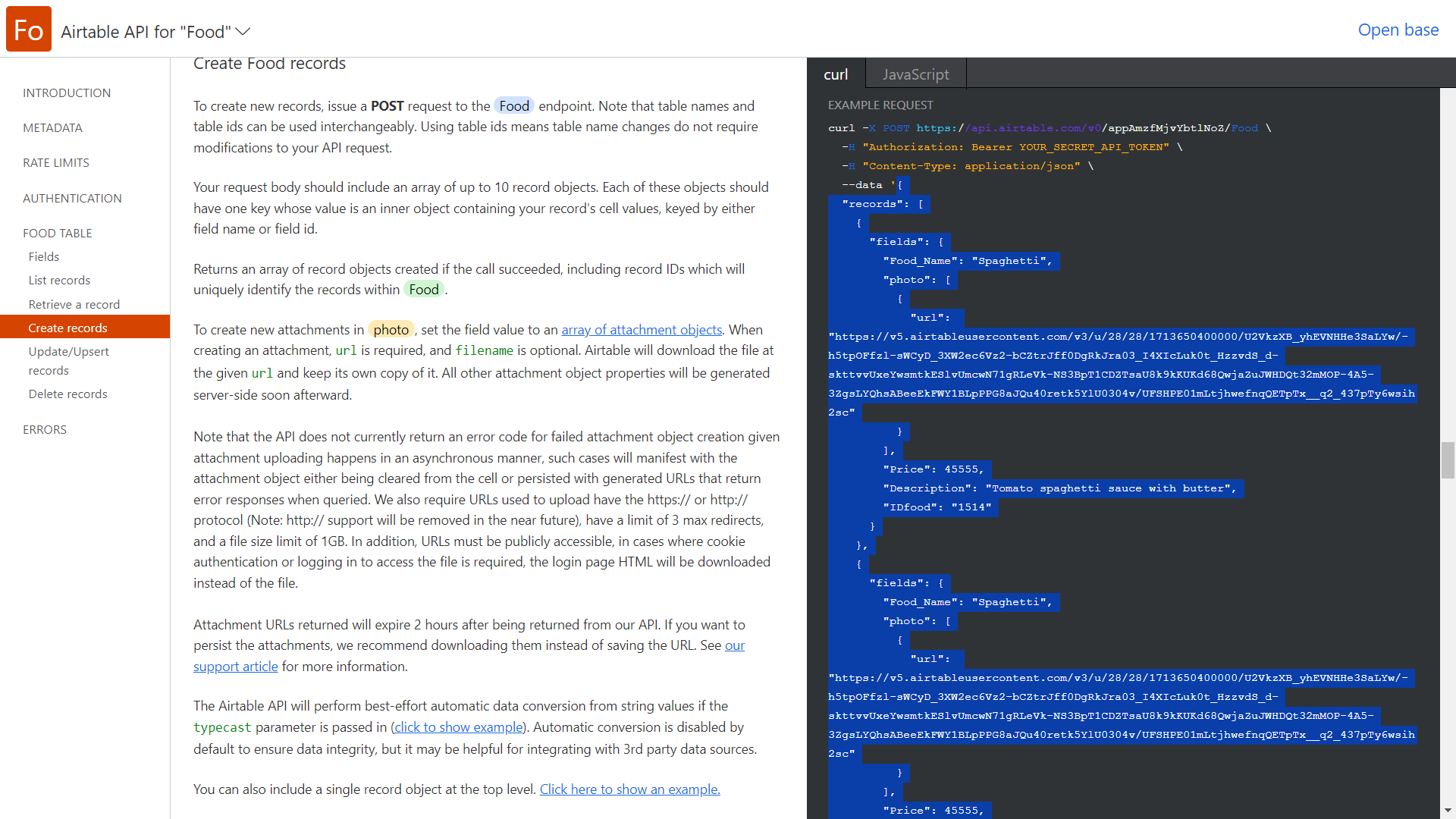
I start by configuring the Post by duplicating my GET LIST Food, to which I will add a JSON retrieved from Airtable by clicking on Help / API documentation / FOOD TABLE / Create records at the top right.
In the JSON configuration, I will add an ID called "Food.id" linked to the Airtable ID "IDfood" :
```json
{
"records": [
{
"fields": {
"Food_Name": "${Food_Name}",
"photo": [
{
"url": "${photo}"
}
],
"Price": ${Price},
"Description": "${Description}",
"IDfood": "${food.id}"
}
}
]
}
```
This configuration will allow me to add records to the database taking into account the provided information, including the food name, photo, price, description, and associated Airtable ID.
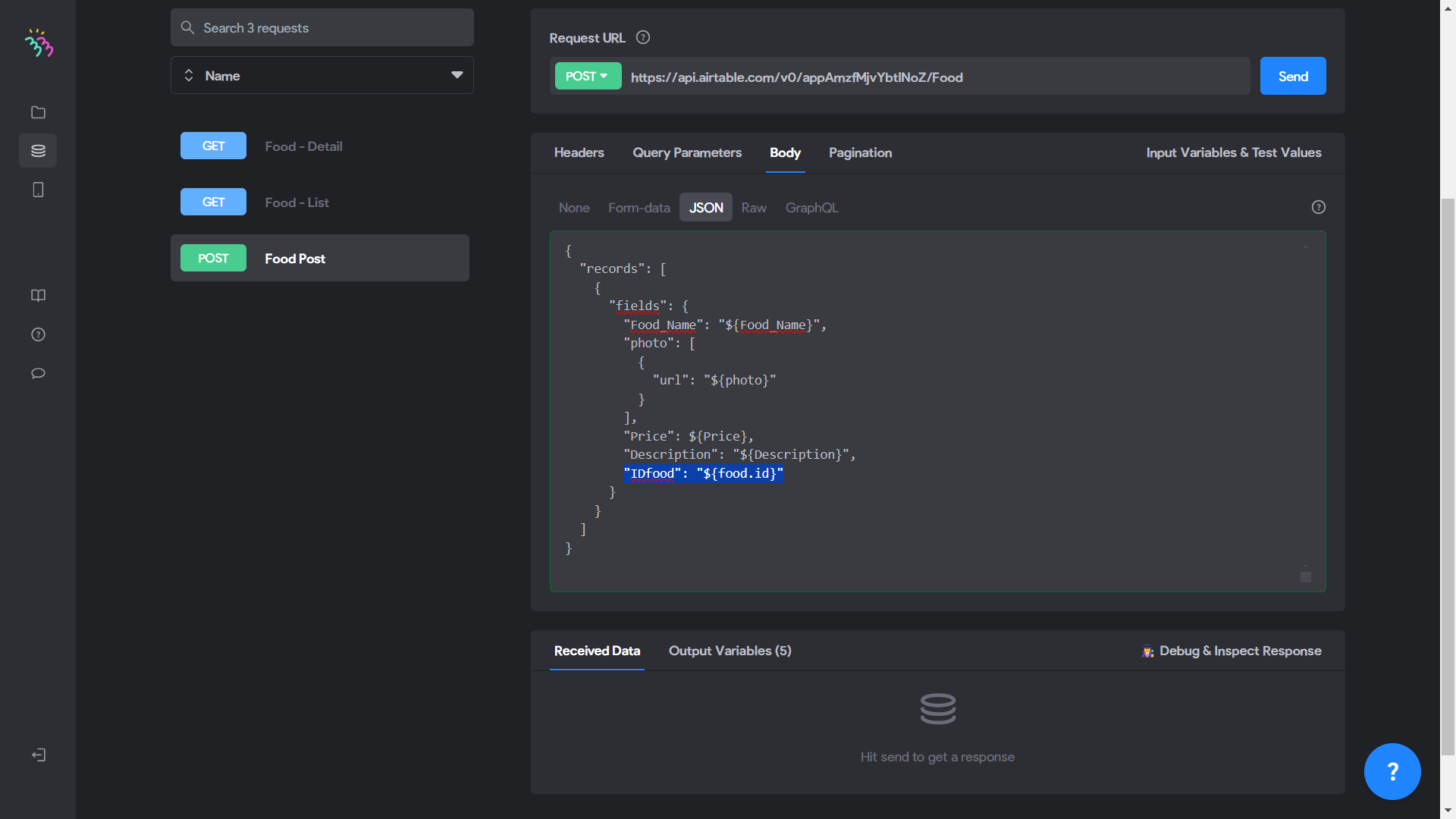
After performing this configuration, I will proceed with a test in "Test Value" to retrieve the test information and ensure they are successfully captured in Airtable.
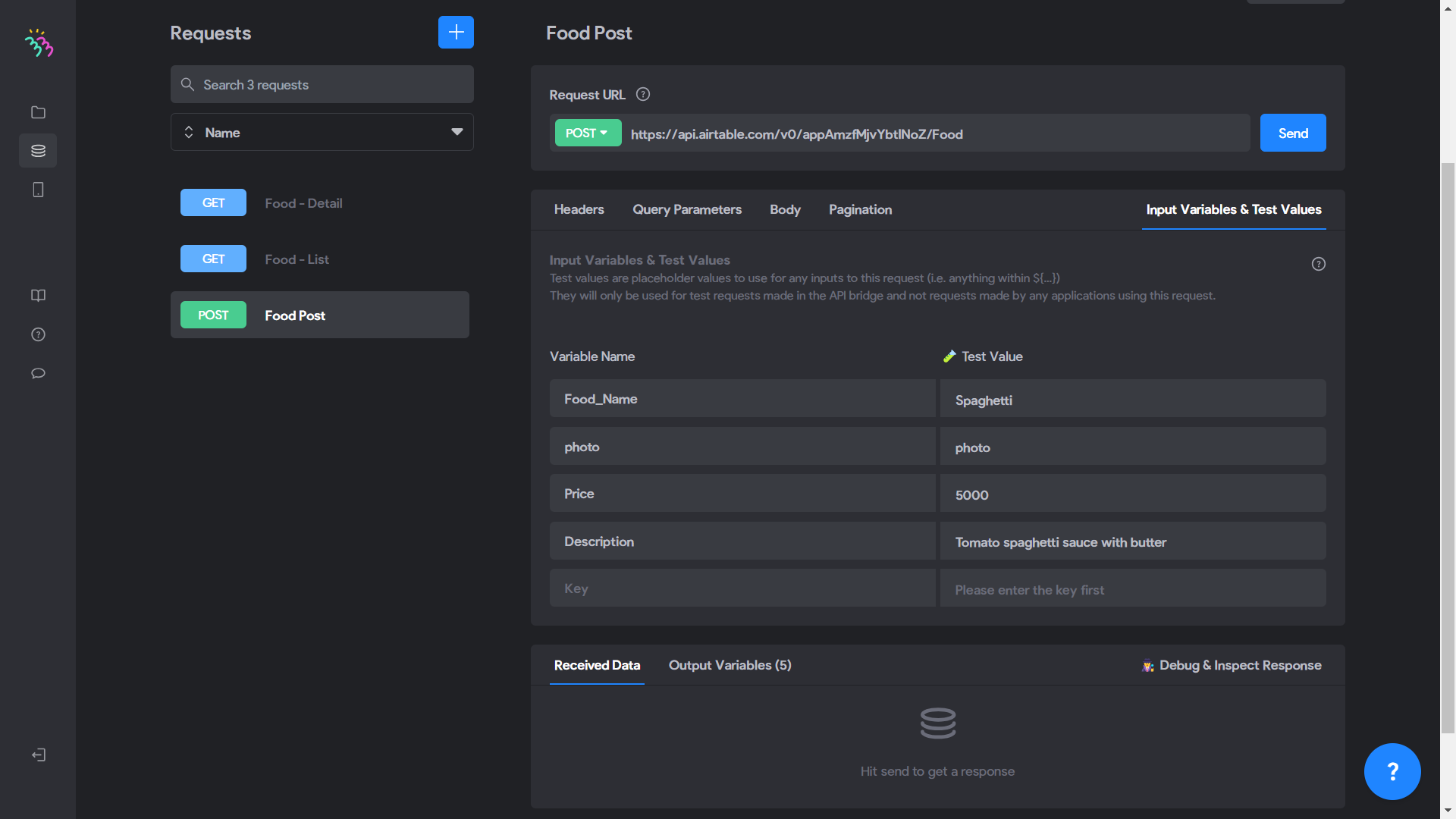
After finishing, please press "Send". You'll need to do the same for tables related to patch operations.
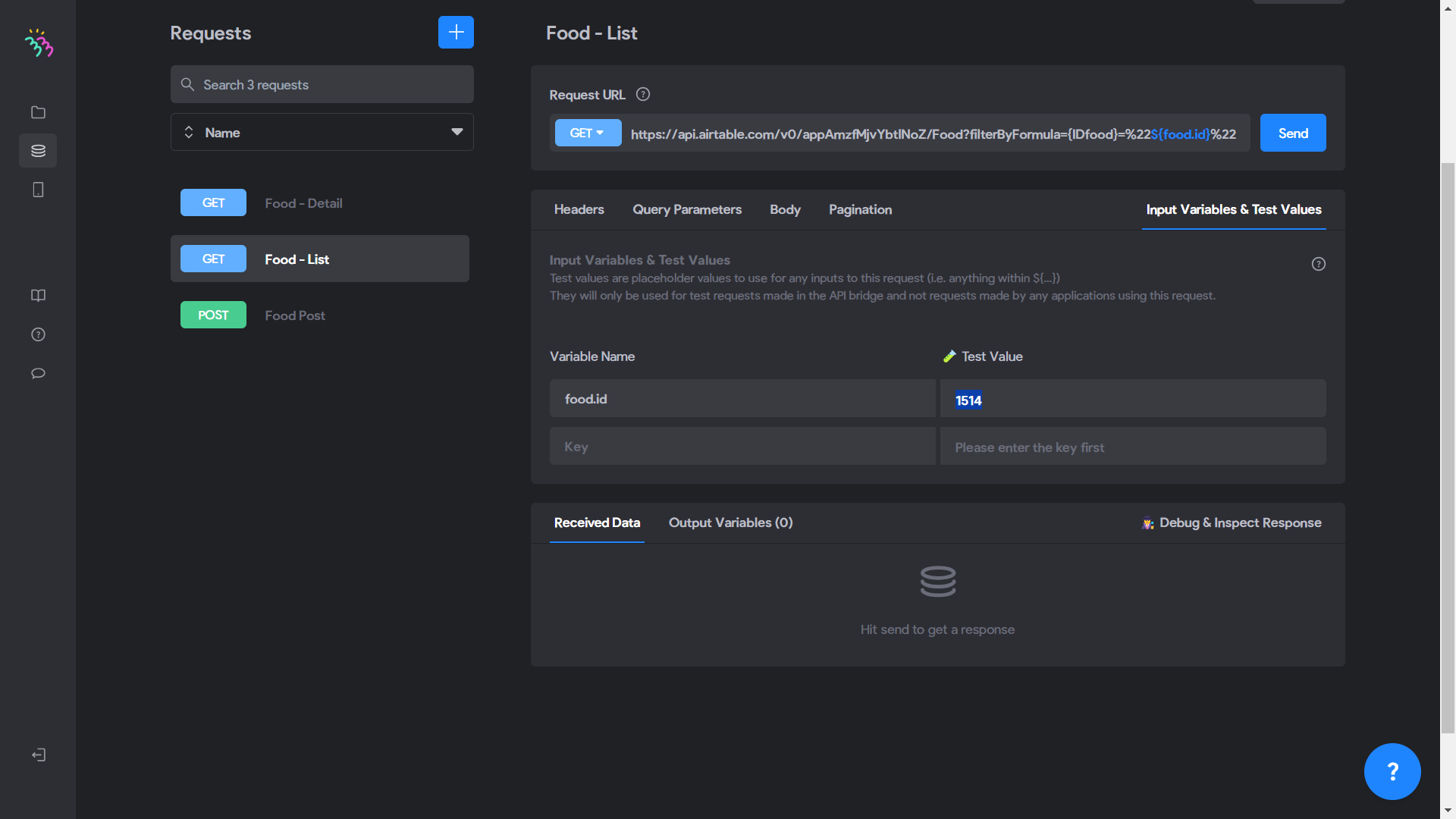
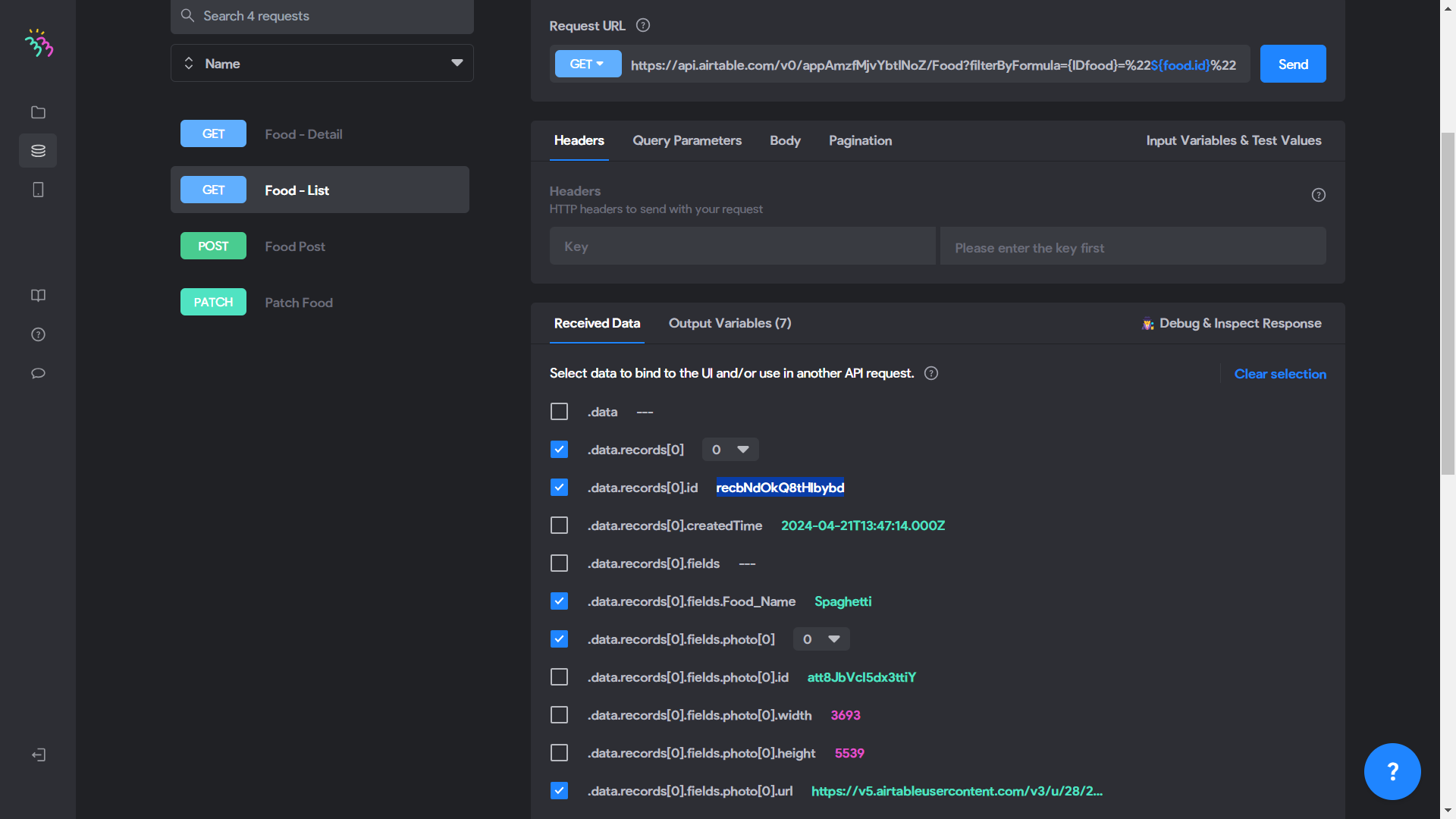
Moving on to the second step: configuring the GET LIST Food, to which we'll add a formula. This formula will be used to set up IDs and facilitate future updates through patch. Here's the formula you can use, tailored to yours:
?filterByFormula={IDfood}=%22${food.id}%22&view=Grid view
Our Airtable IDfood will recognize our Post's food.id to carry out data updates.
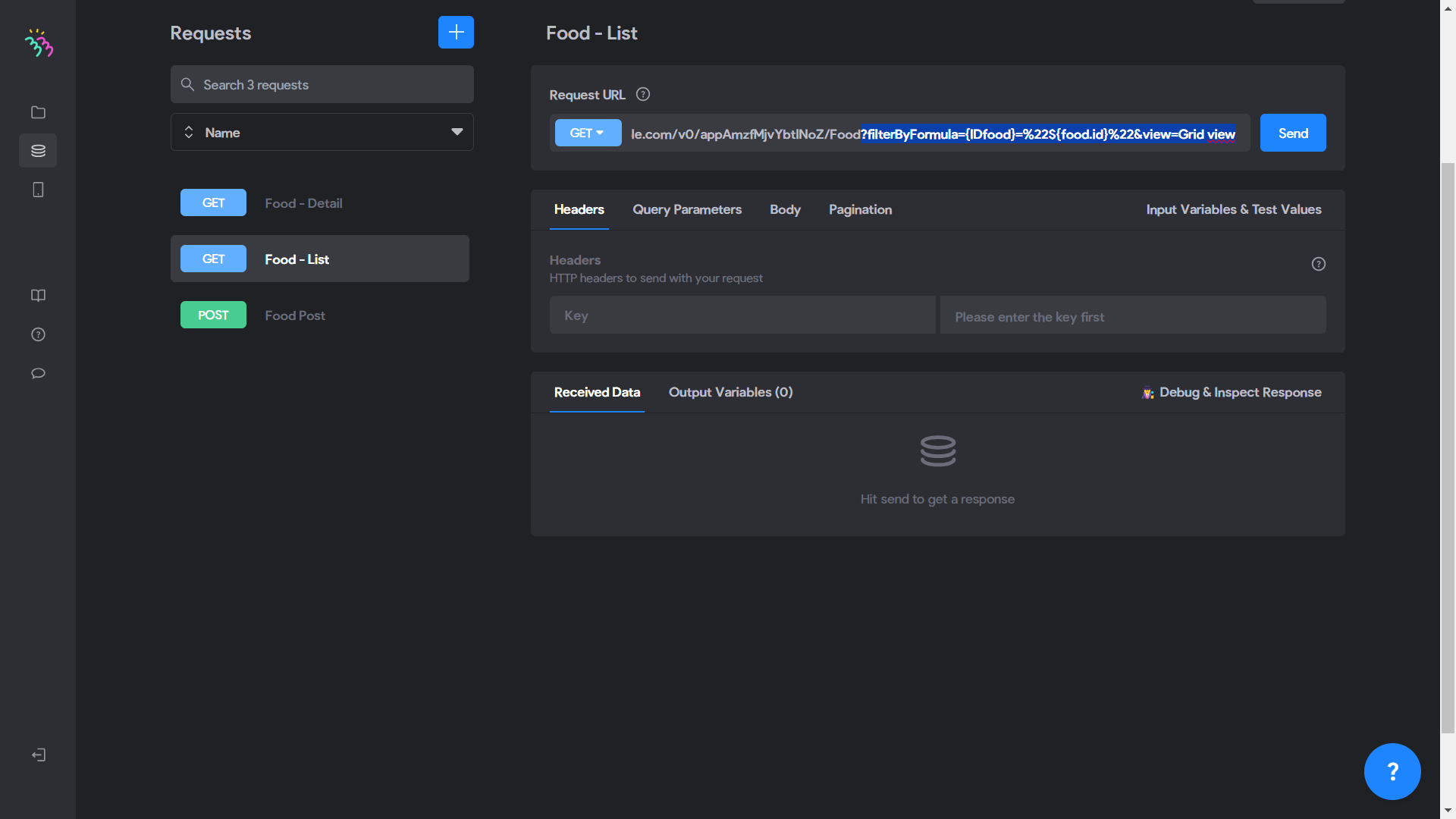
Once done, we configure the "Test Value" according to the ID of the Post, "food.id", in the GET LIST Food, since IDfood equals food.id.
In the "Test Value", I place "food.id" on the left and the value of "IDfood" from the first row of Airtable on the right. This will verify that our configuration works correctly by matching the Post's ID with IDfood in Airtable.
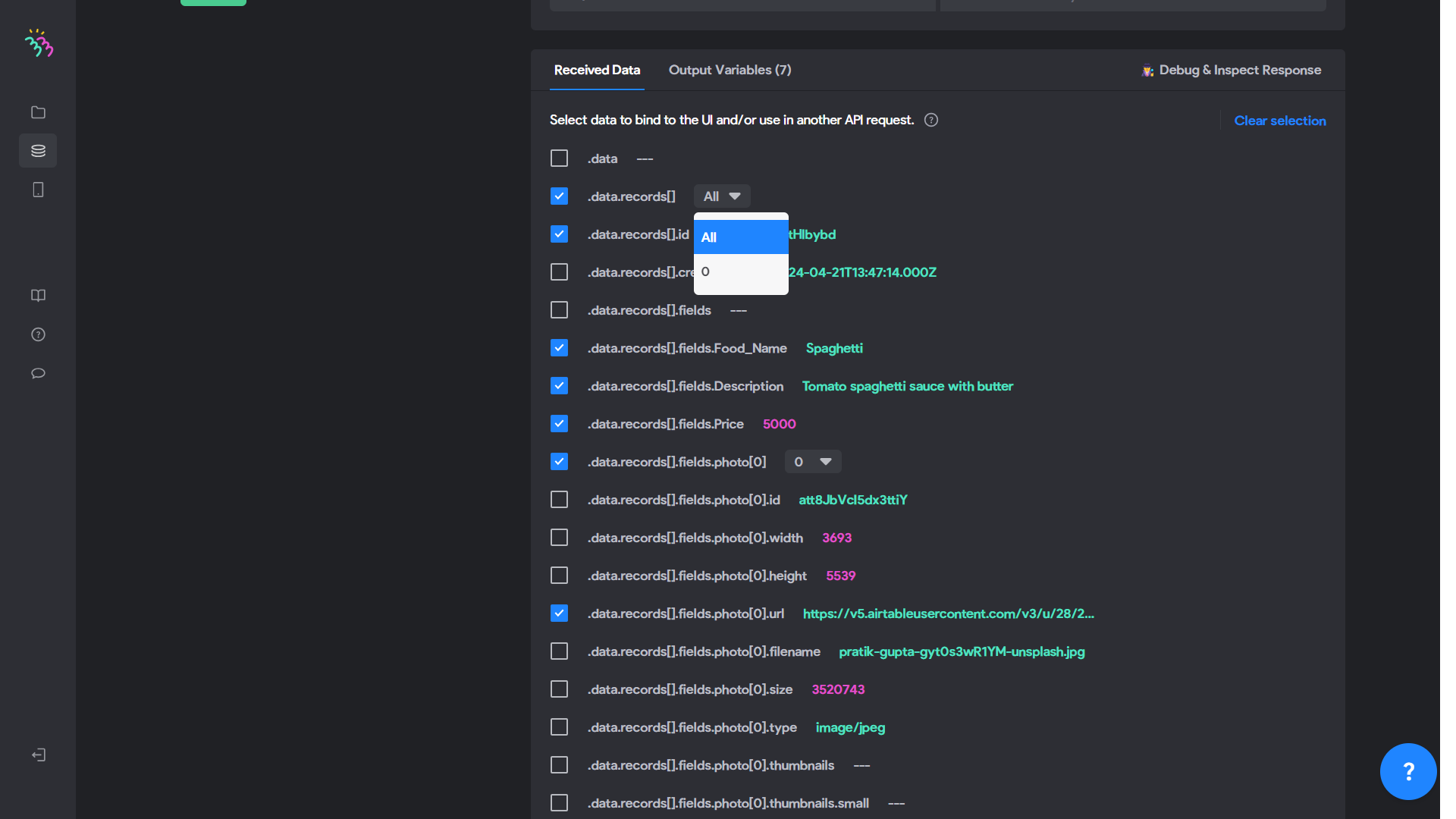
After finishing, please press "Send". The next step involves ensuring that the information does not repeat but remains unique to the ones that need to be modified. To do this, we will change the "All" of "received data" to "0" and delete those of "All" in the Output variables, leaving only those of "0".
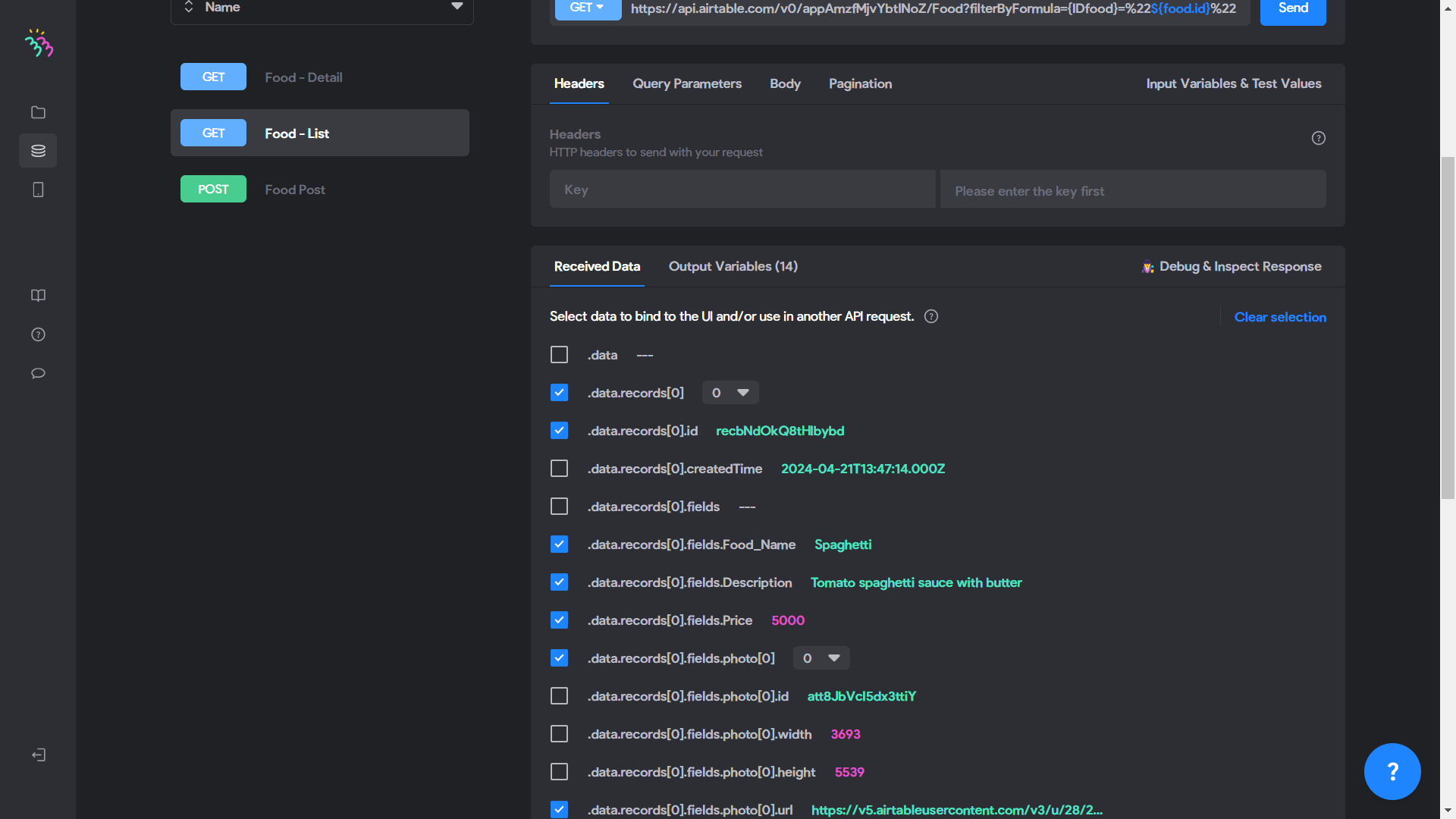
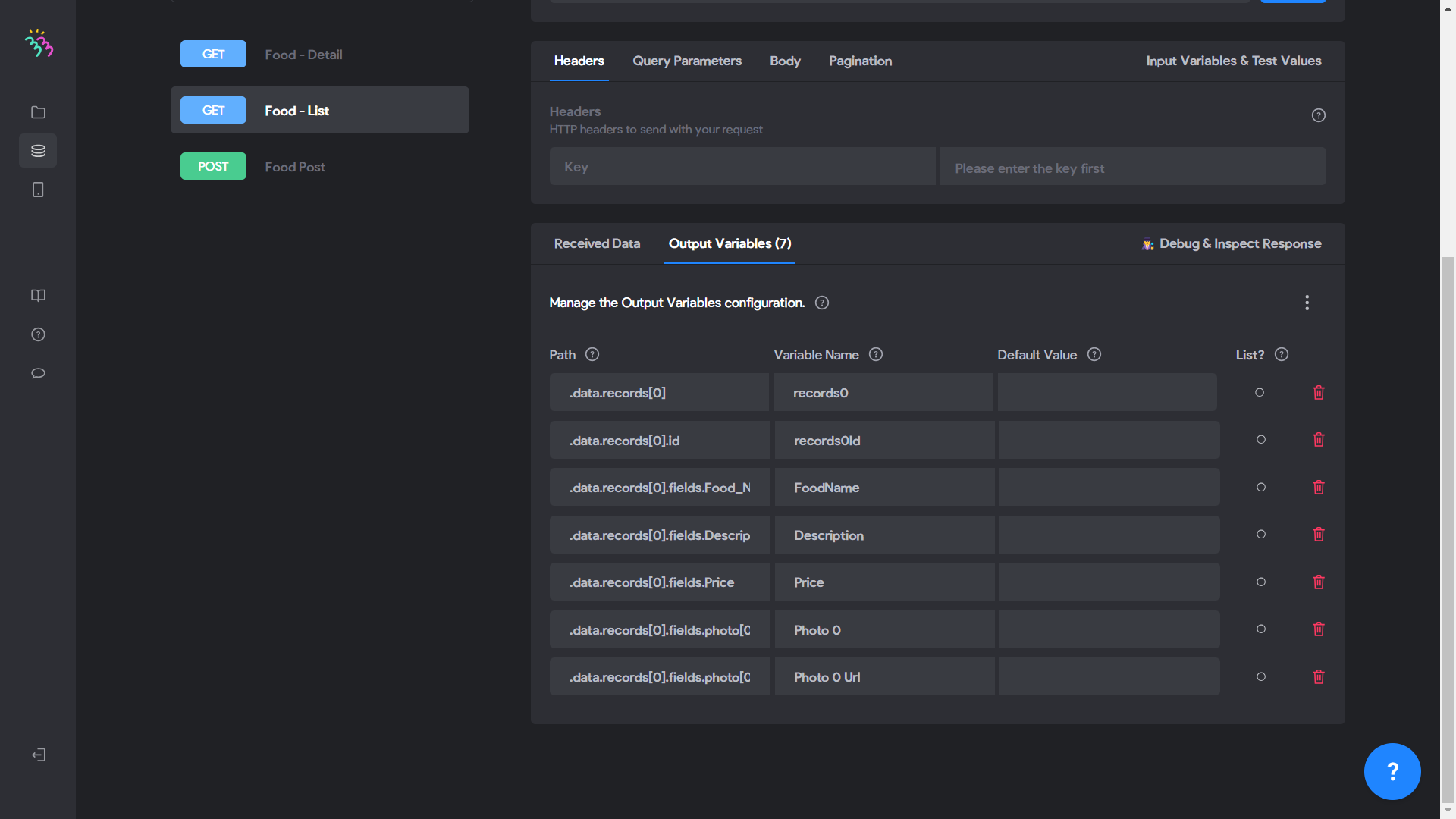
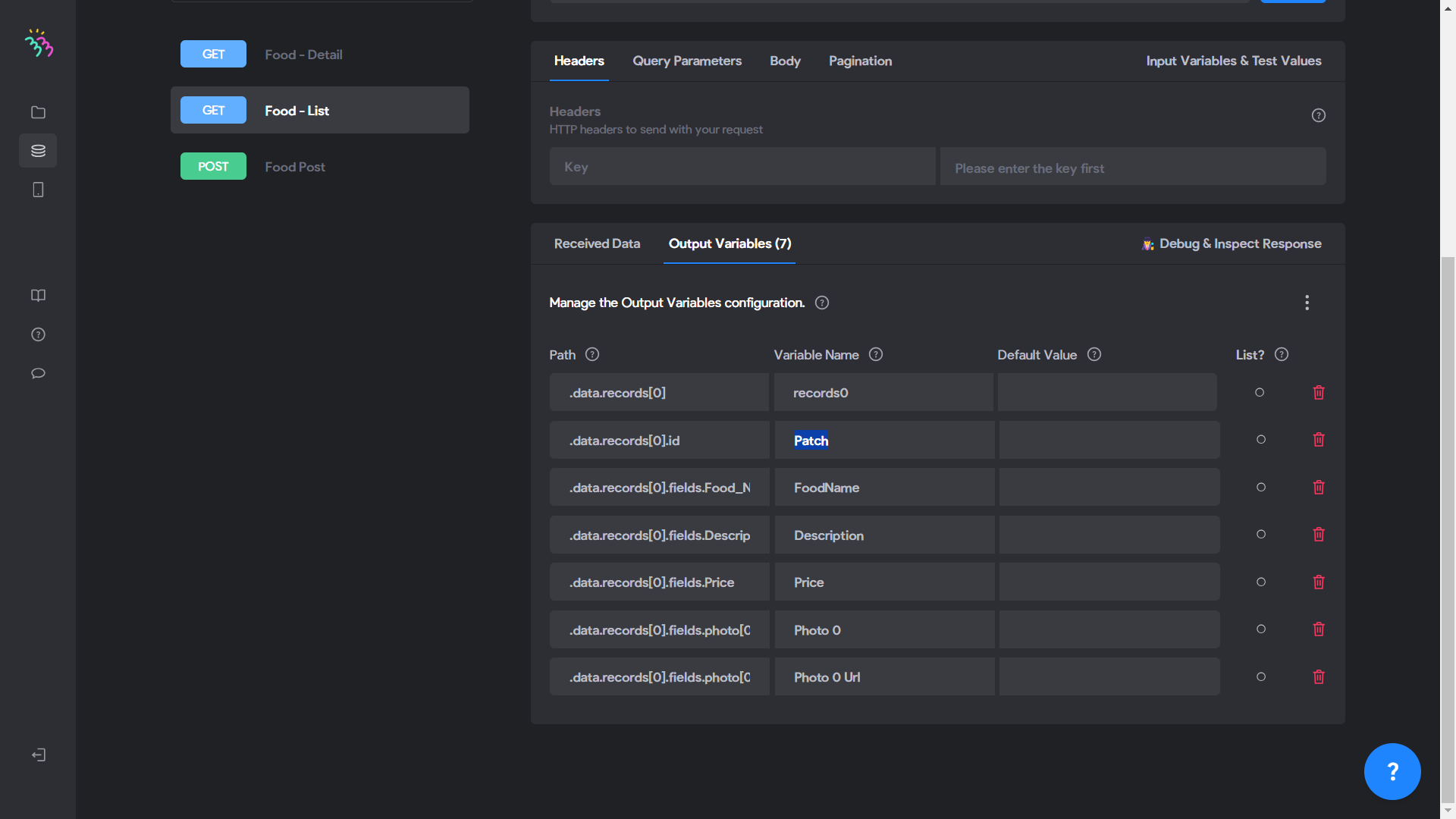
To finish the Get List Food step, we will change the value of ".data.records[0].id" in the Output variables to a name that we will use to create an ID in the Json patch setup. I chose "Patch": ".data.records[0].id = Patch”
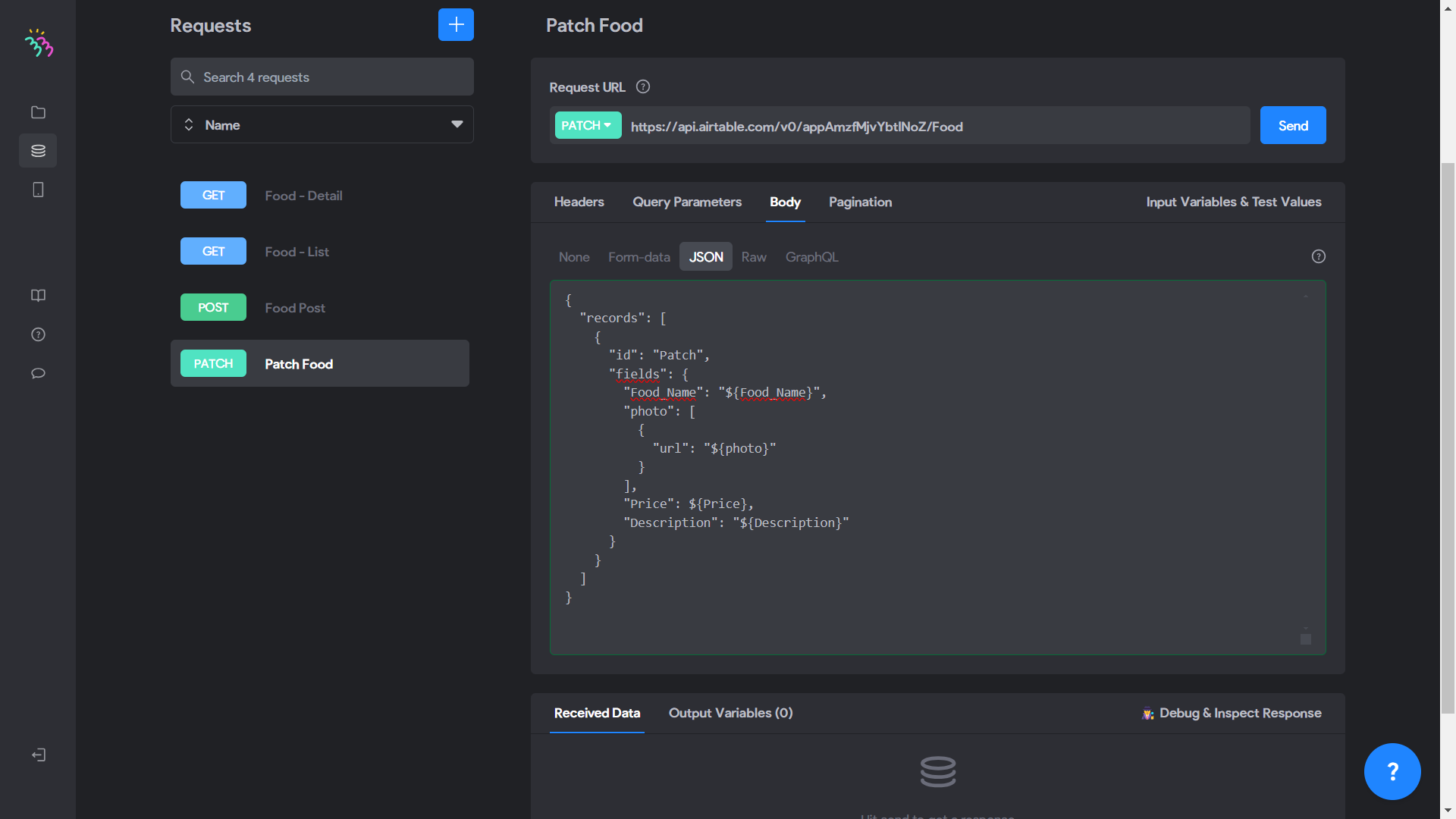
For the final step, the Patch, make a new request for the Patch. Retrieve the Patch API and the JSON to configure from Airtable by going to Help / API Documentation / FOOD TABLE / Update / Upsert Food records.
Here are mine, which are presented as follows:
API Update: https://api.airtable.com/v0/appAmzfMjvYbtlNoZ/Food
My configured JSON Patch:
```json
{
"records": [
{
"id": "Patch",
"fields": {
"Food_Name": "${Food_Name}",
"photo": [
{
"url": "${photo}"
}
],
"Price": ${Price},
"Description": "${Description}"
}
}
]
}
```
In my JSON Patch, at the ID level, there is a value "Patch", the same "Patch" that is found in GET list food in the output variables. Then, configure the "Test Value" by taking into account the ID of the configured JSON Patch, giving it as value the ID from GET List Food found in received data.
After configuring all this according to your table, press "Send".
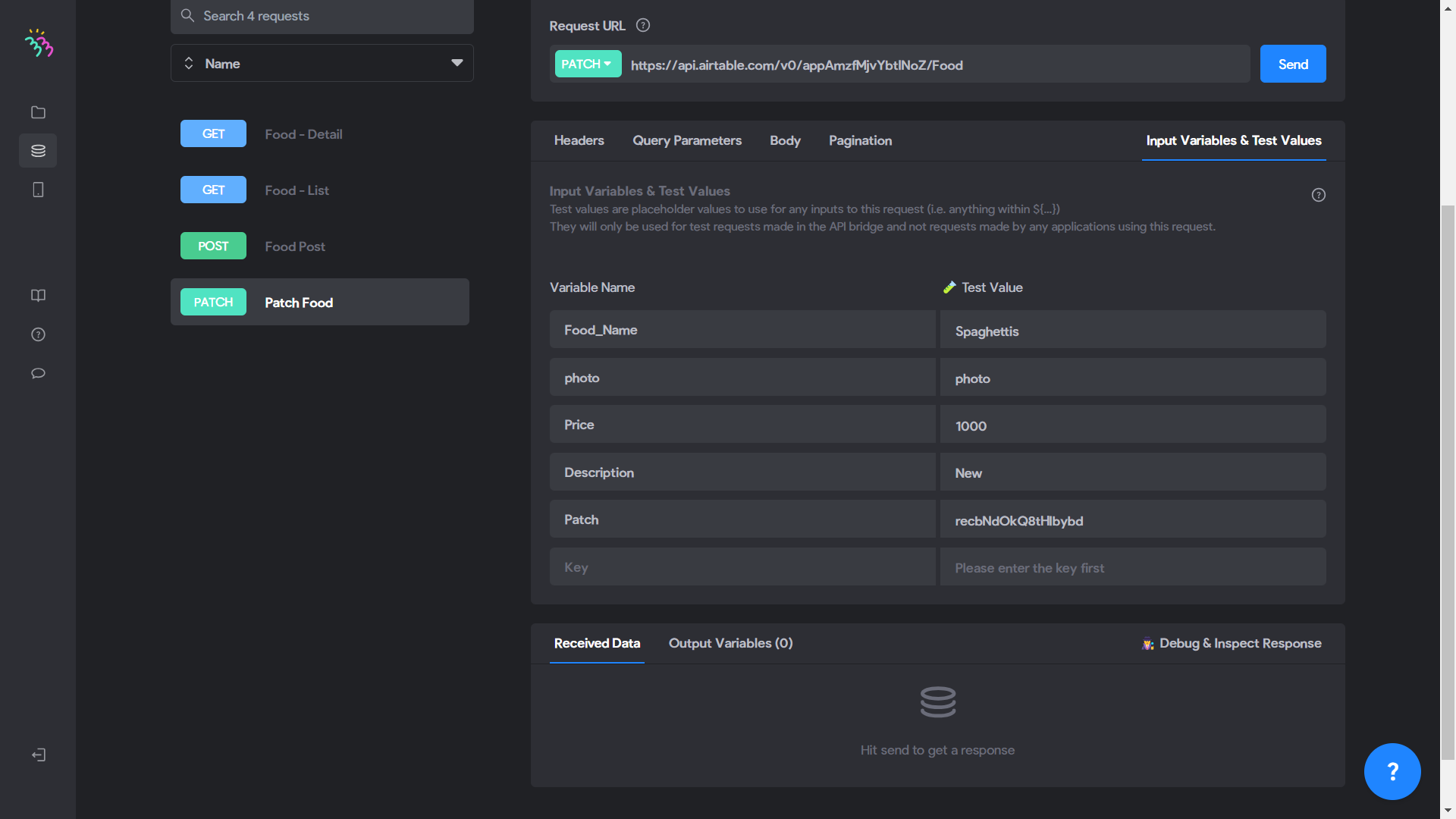
I have copied all of the steps but the last step I get Error 400 isn’t working. Can you please share how to ix
https://airtable.com/appNojgvbFhjjHmeX/tblHpyzBBZuNleVdk/viwglKn9SBq9wfbfx?blocks=hide
Wrote something in this thread and want it removed? Request removal
Ask the community on Discord
This archive is read-only. New questions, office hours and product updates now happen in the Bravo Discord.
Join the Discord