Archived from the Bravo community forum (2021–2026). Some answers may refer to older versions of Bravo.
Hey Bravo Studio community!
As we dive deeper into creating awesome designs, let’s share some tips on using the Aspect Ratio Relative to screen tag effectively.
By default, containers fill the 100% width of the screen, and adjust their height proportionally to keep the design's aspect ratio. But when you use the tag [aspect-ratio:screen], the height gets calculated differently—it becomes a percentage based on your design.
This tag is super handy when you want to avoid scrolling. By creating a container solely in the design, you're forcing that container to adapt to the device's height.
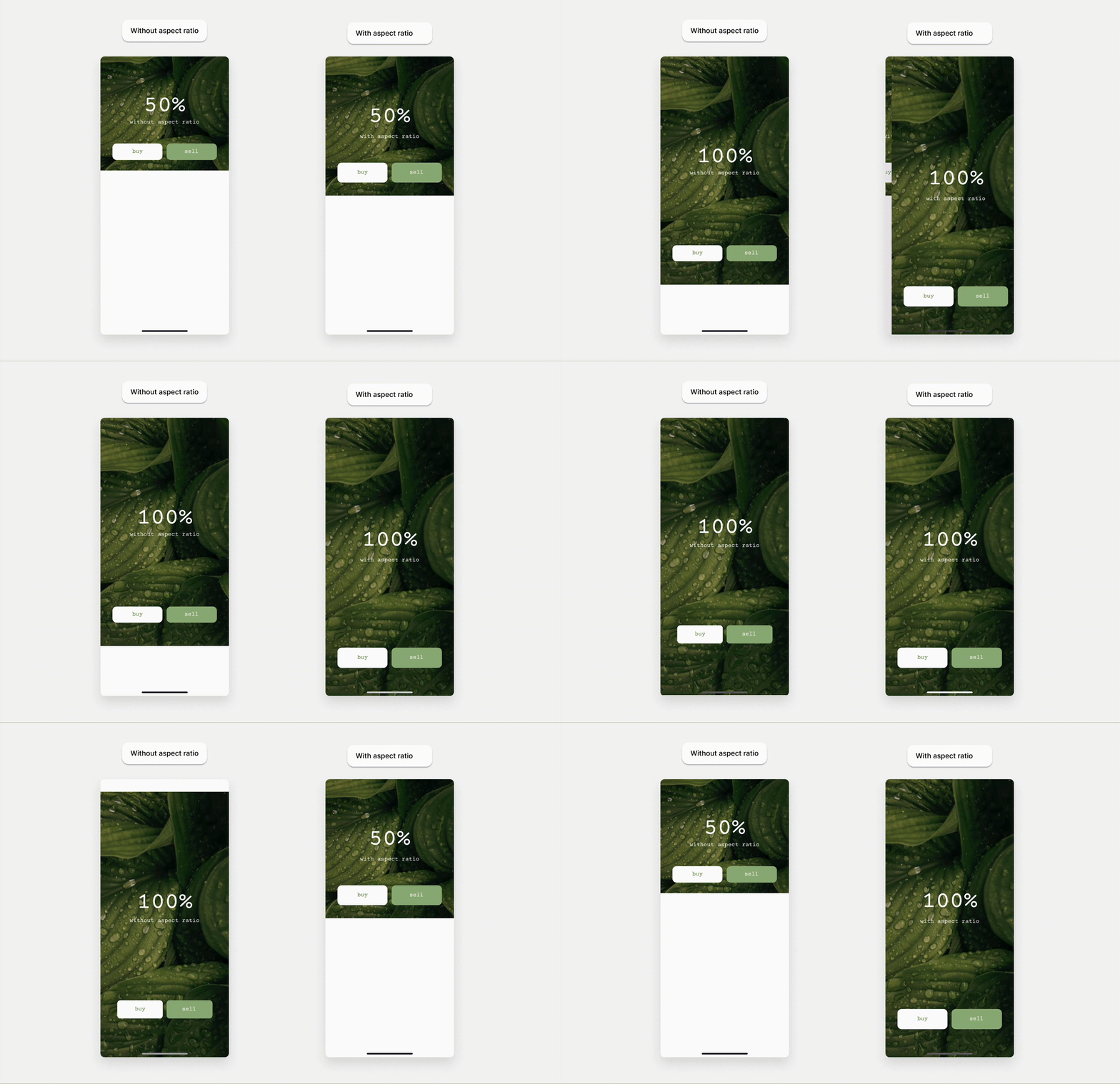
Here's what we've learned:
👍 Do’s:
Reduces Unnecessary Scrolling: Using the aspect ratio relative to screen tag helps minimize unnecessary scrolling by optimizing the content layout to better fit the screen height.
Apply to Second-Level Containers: Add the [aspect-ratio:screen] tag to second-level containers for accurate rendering.
Combine containers with the tag: If you want to combine this container with another container on the same level within the same screen, make sure both containers have the tag applied. You can also create two containers with [aspect-ratio:screen]. If each container took up 50% of the design in Figma, they will also occupy 50% of the screen on the device.
Test on Multiple Devices: Always test your design with Bravo Vision or your live app on various devices to ensure it adapts correctly to different screen sizes.
Include a Splash Screen if Needed: If your design isn't fitting as intended, add a splash screen in Figma to help Bravo calculate ratios for other app pages.
👎 Don’ts:
Avoid Long screens: Try not to apply this tag to long screens or containers. Doing so may lead to unexpected rendering, and it won't necessarily prevent the screen from scrolling.
Overstretch or Compress Elements: Be cautious of stretching or compressing elements too much, as it can distort the design on different screen sizes.
Don't Overload with Content: Try not to stuff too much into one container as it may affect readability and user experience, especially on smaller screens.
Avoid its use in Special Containers: Refrain from using the aspect ratio relative to screen tag on special containers like modals, pop-ups, and empty state pages which are currently not supported.
If you found this post helpful, give us a thumbs up or let us know in the comments! 👍
Remember, these tips are here to guide you, but feel free to experiment and find what works best for your specific design needs.
If you need assistance or have any questions, please don't hesitate to reach out. We're here to support you!
Happy designing! 🎨🚀
Bravo Team
2 replies
Wrote something in this thread and want it removed? Request removal
Ask the community on Discord
This archive is read-only. New questions, office hours and product updates now happen in the Bravo Discord.
Join the Discord