← Design & Bravo Tags
Design & Bravo Tags April 29, 2025 · 4 replies

Horizontal "hug" text issue

Archived from the Bravo community forum (2021–2026). Some answers may refer to older versions of Bravo.

Hi have an issue I can’t resolve by myself and I hope you can help me before I have to change my design :/

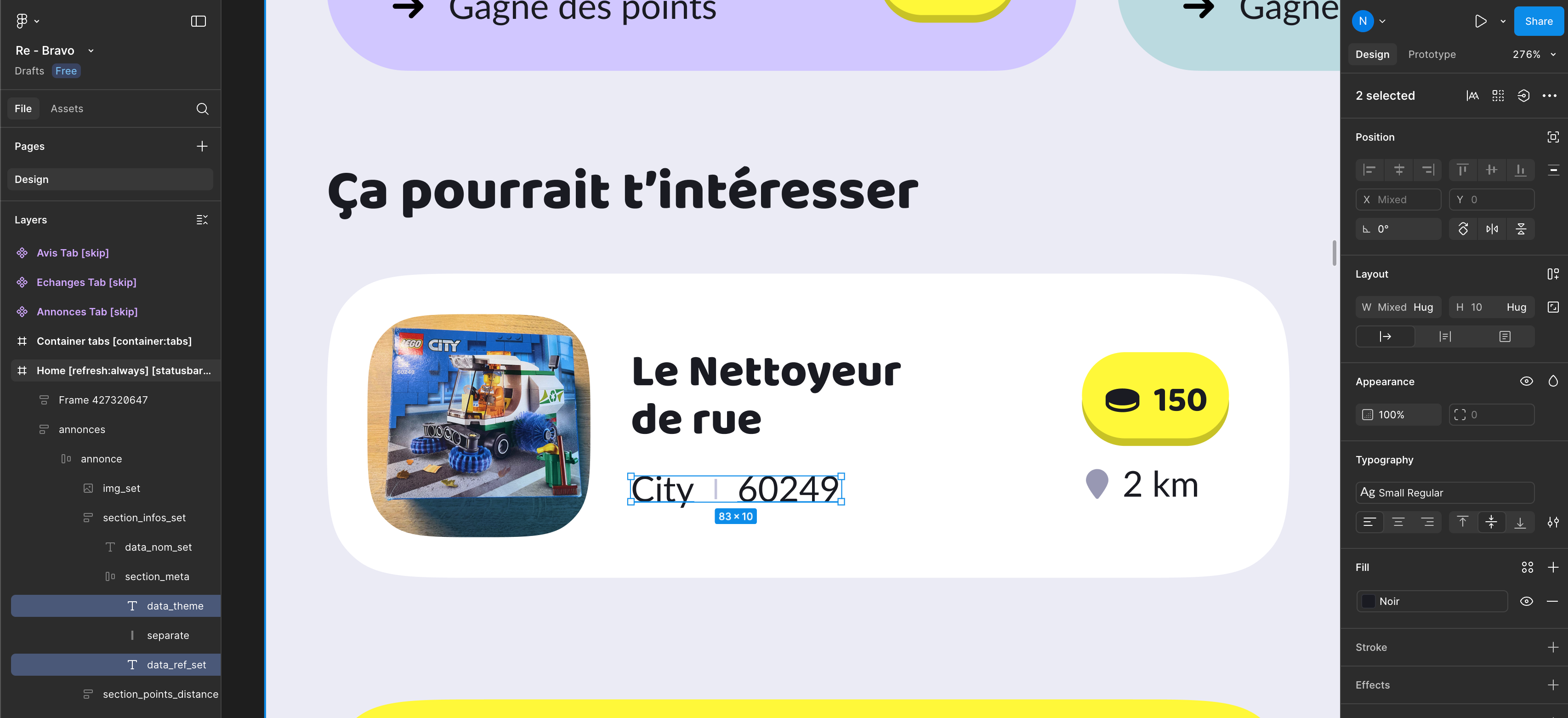
I have cards with horizontal content (2 words next to each other) separated by a line.
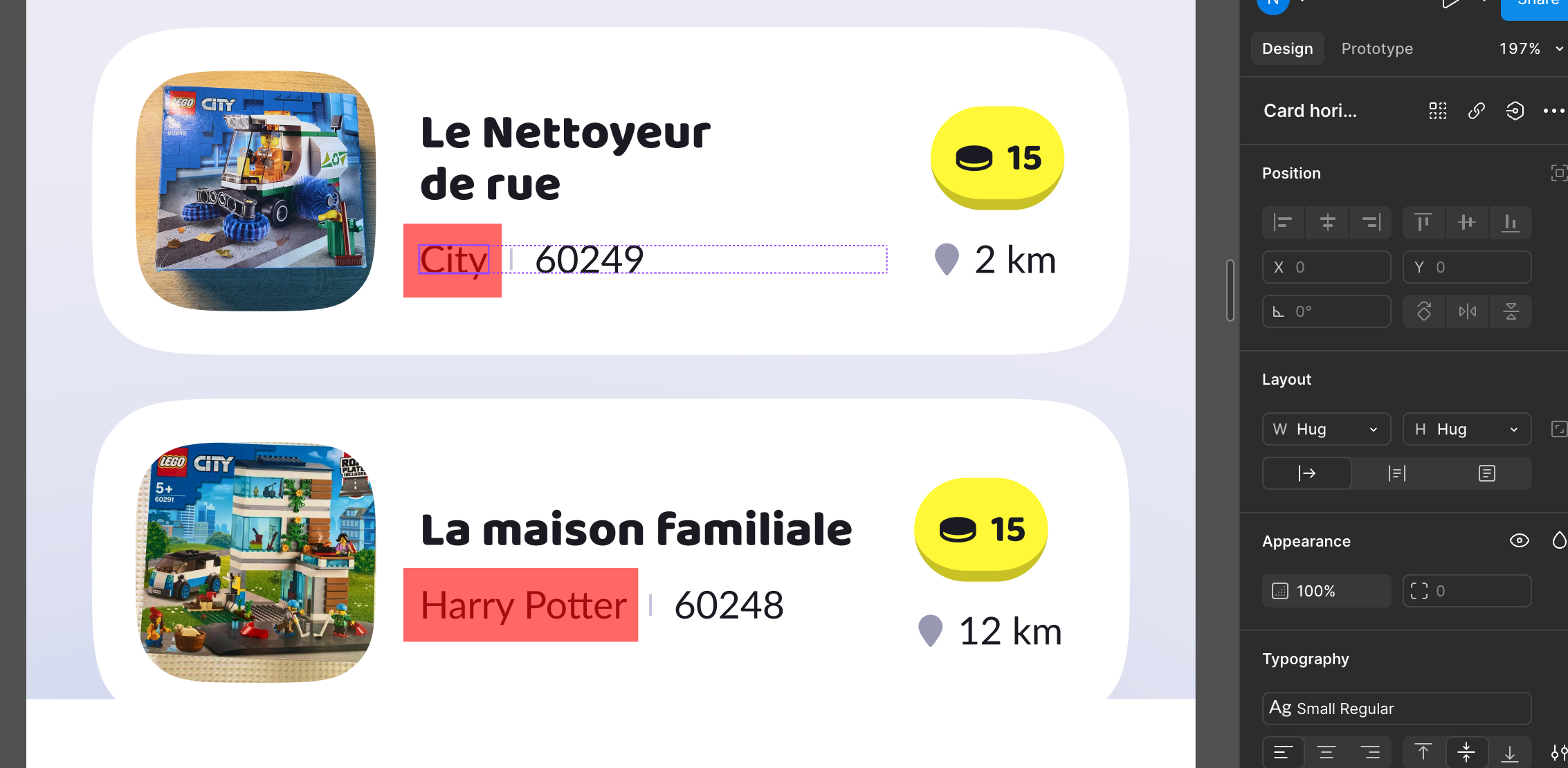
Each text layer are in “Hug content” in Figma as these words will came from my airtable database and they will have differents size (see attached).

The problem is that in Bravo vision, texts appears only with “fixed width” content size so :
- I have to “fixed width” my texts layers with a large size to be sure all words (word with 2 letters or word 8 letters) will be visible. But if I do that, I can’t display 2 texts separated by a line with 8px padding left and right (like my exemple). And I will get an empty space.
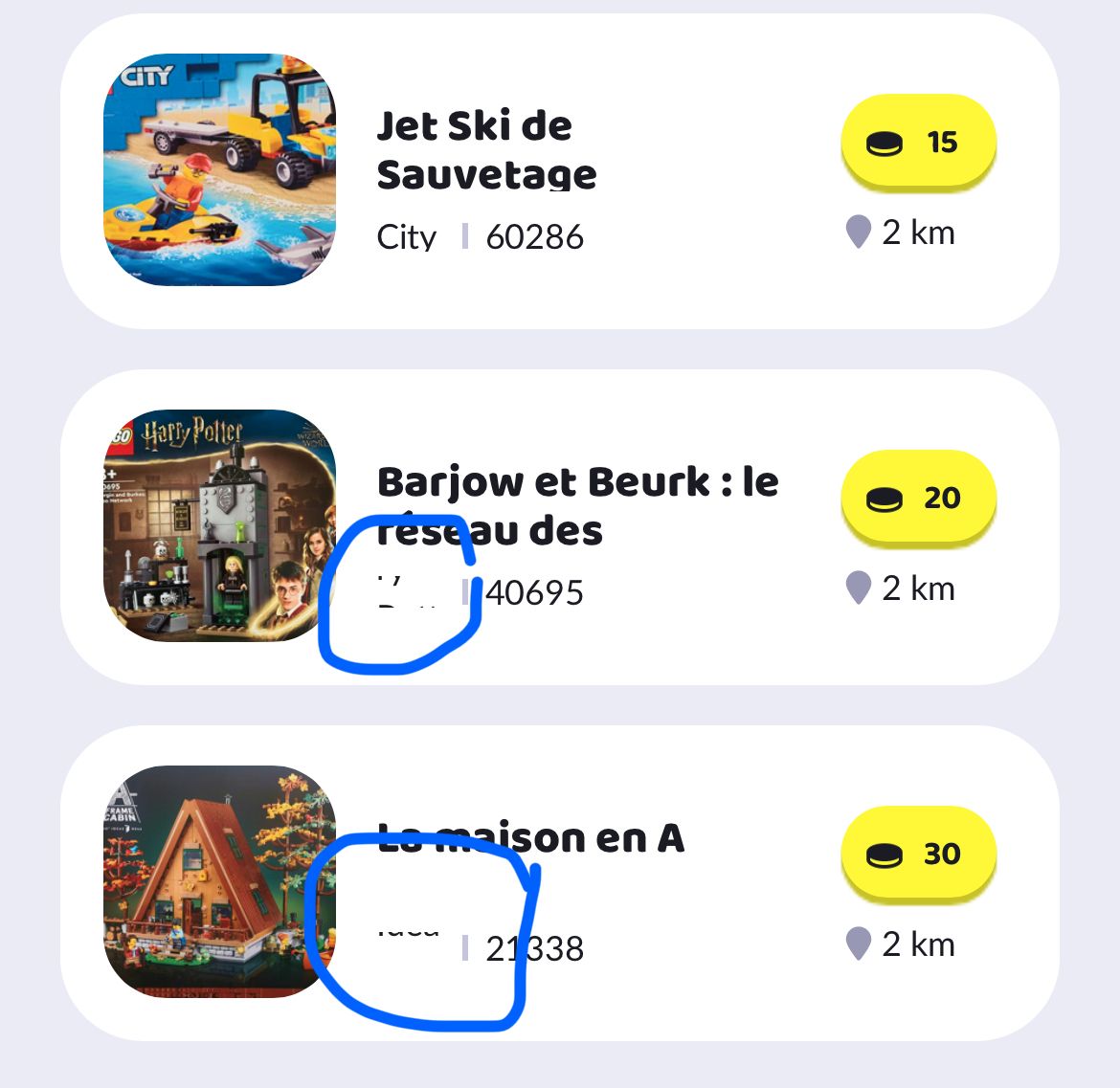
- If I only let the 2 texts layers in “hug content”, they will be cropped.. (see attached).

There is a way to do horizontal [flexo] text or something like that?
Thanks in advance for your help

4 replies
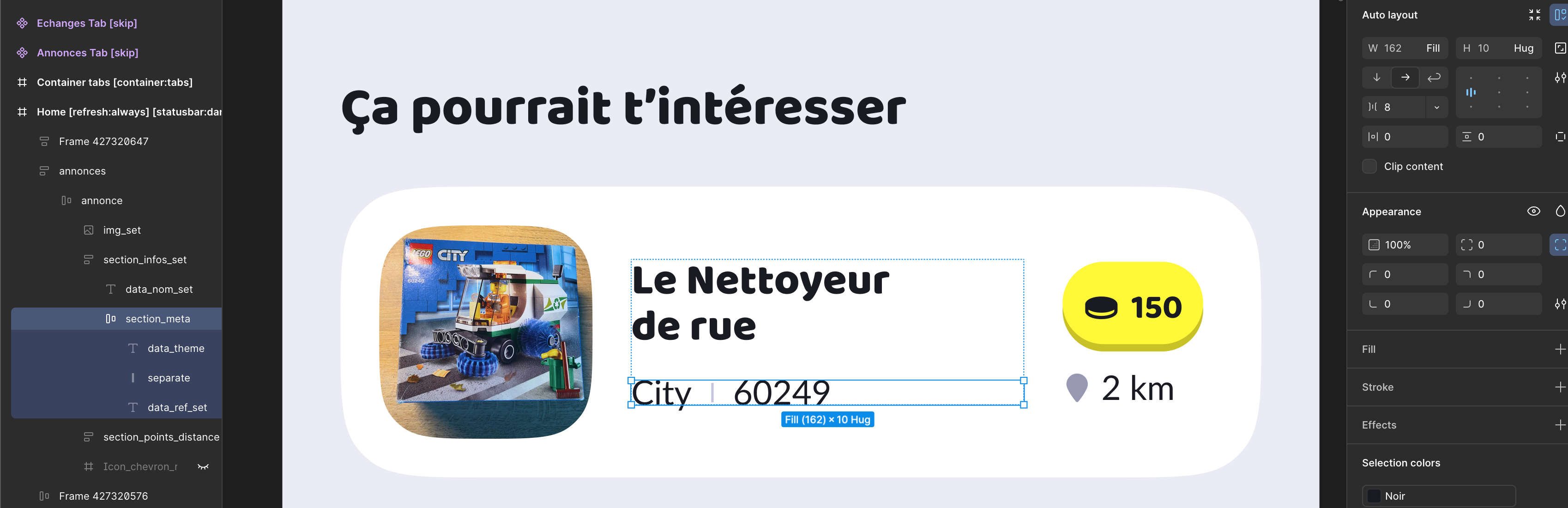
Dany May 1, 2025

down side of bravo not possible that it adapts to the text

Aurika Bravo team May 2, 2025

Hi, maybe you can try this workaround to resolve the cropping and keep things responsive:

  1. Group Both Text Layers

    • Select your two text elements and the divider line.

    • Use Auto Layout (Shift + A in Figma) to wrap them in a horizontal frame.

  2. Configure Auto Layout Frame

    • Set Direction: Horizontal

    • Spacing between items: 8px

    • Padding: 0

    • Alignment: Center or Top depending on your layout

  3. Set Frame Width to "Fill container"

    • Inside this frame, set each text layer’s width to “Hug contents”

    • The container frame itself (the one with Auto Layout) should be set to “Fill container” within the parent card.

  4. Consider Line Breaks

    • Make sure text boxes have wrapping disabled if you don’t want them to spill into multiple lines.
Nic May 2, 2025

Hi, aurika, thank you for your clear answer but unfortunately my Figma design is already exactly as you describe. 😔

Juan May 19, 2025

hey @Nic M what I would suggest:

1. Quick workaround (but can look a bit messy)

If your left-side labels (e.g. “City”, “Country”, “Mall”) are fairly short and predictable:

• Just make the text box wide enough to fit the longest possible value.

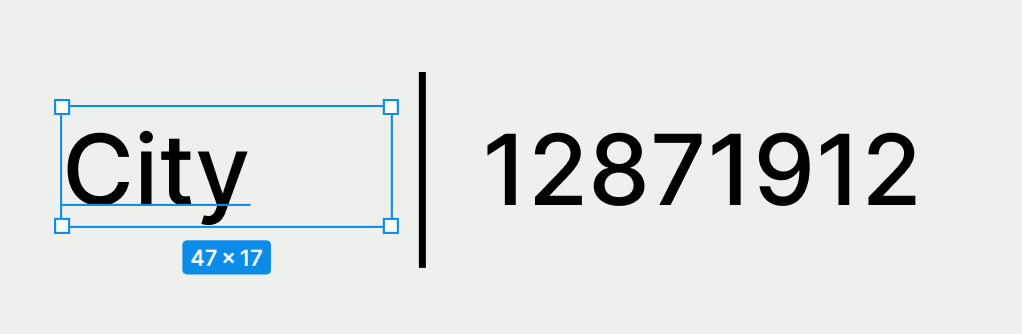
• You can do that by typing in your longest expected string or manually adjusting the width (see example in the image).

• It’s fast, but may not look clean with varying content lengths.

2. Cleanest solution (recommended)

If your backend allows it (e.g. super easy in Xano):

• Concatenate the two pieces of info (like “City” and “121241572”) into one dynamic string → e.g. "City | 121241572".

• That way, it renders cleanly in a single text box without layout issues, and stays responsive across all data variations.

Wrote something in this thread and want it removed? Request removal

Still stuck?

Ask the community on Discord

This archive is read-only. New questions, office hours and product updates now happen in the Bravo Discord.

Join the Discord