← Design & Bravo Tags
Design & Bravo Tags November 12, 2021 · 6 replies

Opacity appearance (bug?)

Archived from the Bravo community forum (2021–2026). Some answers may refer to older versions of Bravo.

I've noticed that in Bravo Vision opacity appearance is different depending on how opacity has been applied.

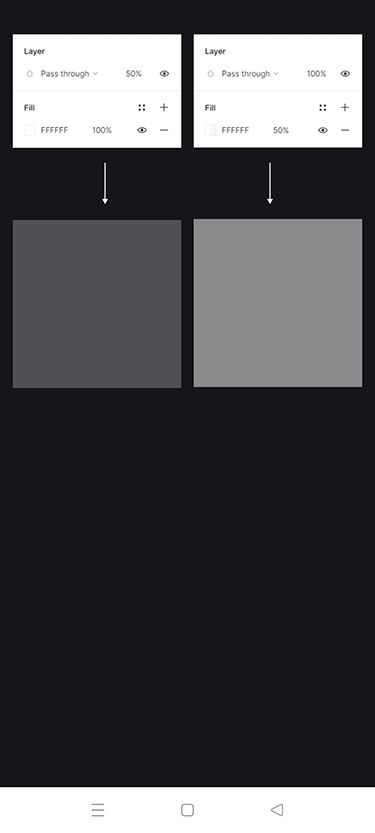
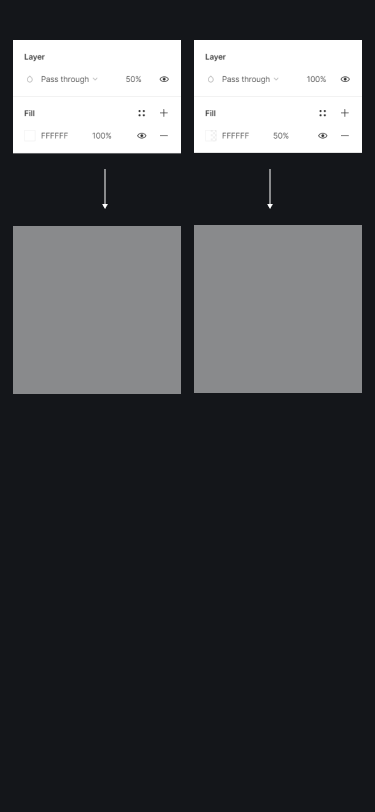
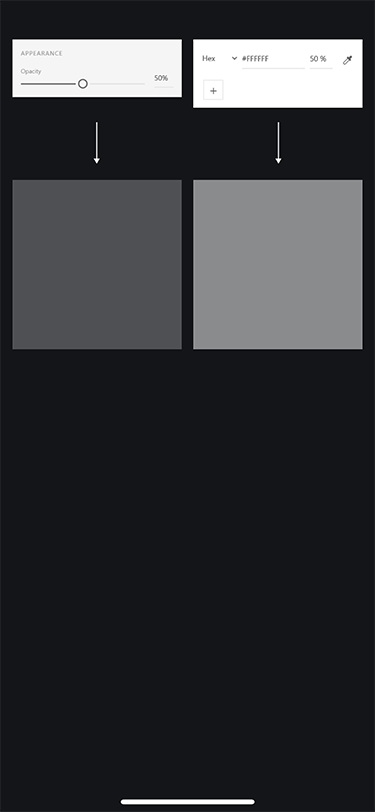
Here's my Figma setup:
opacity-test.png

I've included properties panel screenshots to show that:

  • the left rectangle has 50% opacity applied on the Layer level
  • the right rectangle has 50% opacity applied on the Fill level

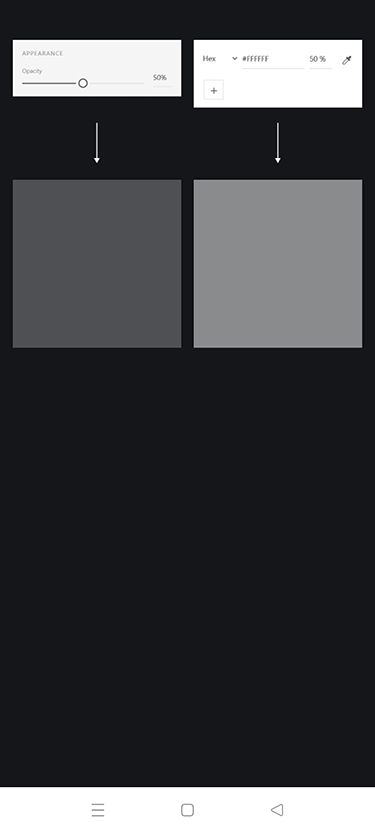
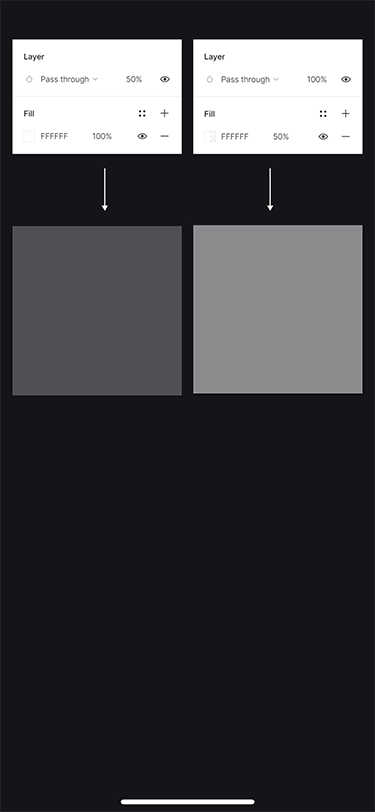
Here's how it looks in the Bravo Vision:
bravo-vision.png

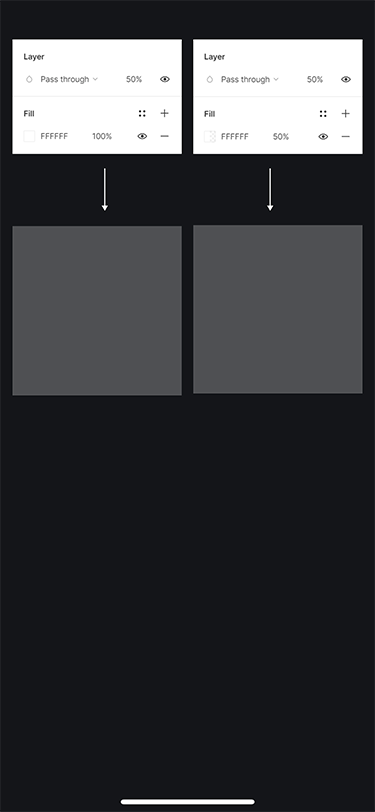
It looked to me as if the left rectangle was exactly 50% "more transparent" than the left one so I've applied 50% Layer opacity to the right one as well, to see what will happen.

Here's Bravo Vision screenshot:
bravo-vision-02.png

So it seems to me that Layer opacity cascade down to the Fill opacity and only then a calculation is being done.

I've made one more test to see if that's true. Here's my Figma setup:
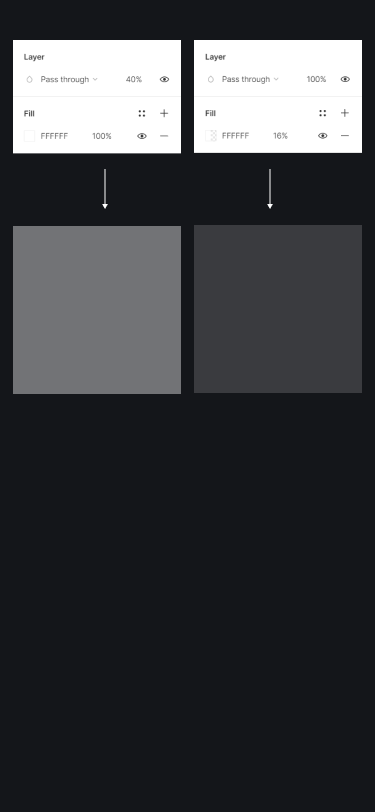
opacity-test-02.png

My assumption was that if it's true that Layer opacity cascade down to Fill opacity and then they are multiplied, then both rectangles should look the same since 40% of 40% = 16% (which is the Layer opacity of the right rectangle).

Here's Bravo Vision result:
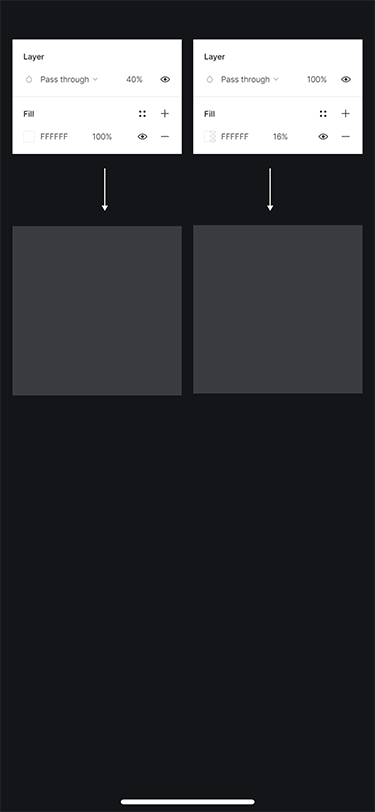
bravo-vision-03.png

So yeah - I think there's a bug where Layer opacity is being applied to the Fill and then multiplied by it.

6 replies
Karla November 12, 2021

Interesting finding have you tried both android and iOS to see if they look the same?

Lukas November 13, 2021

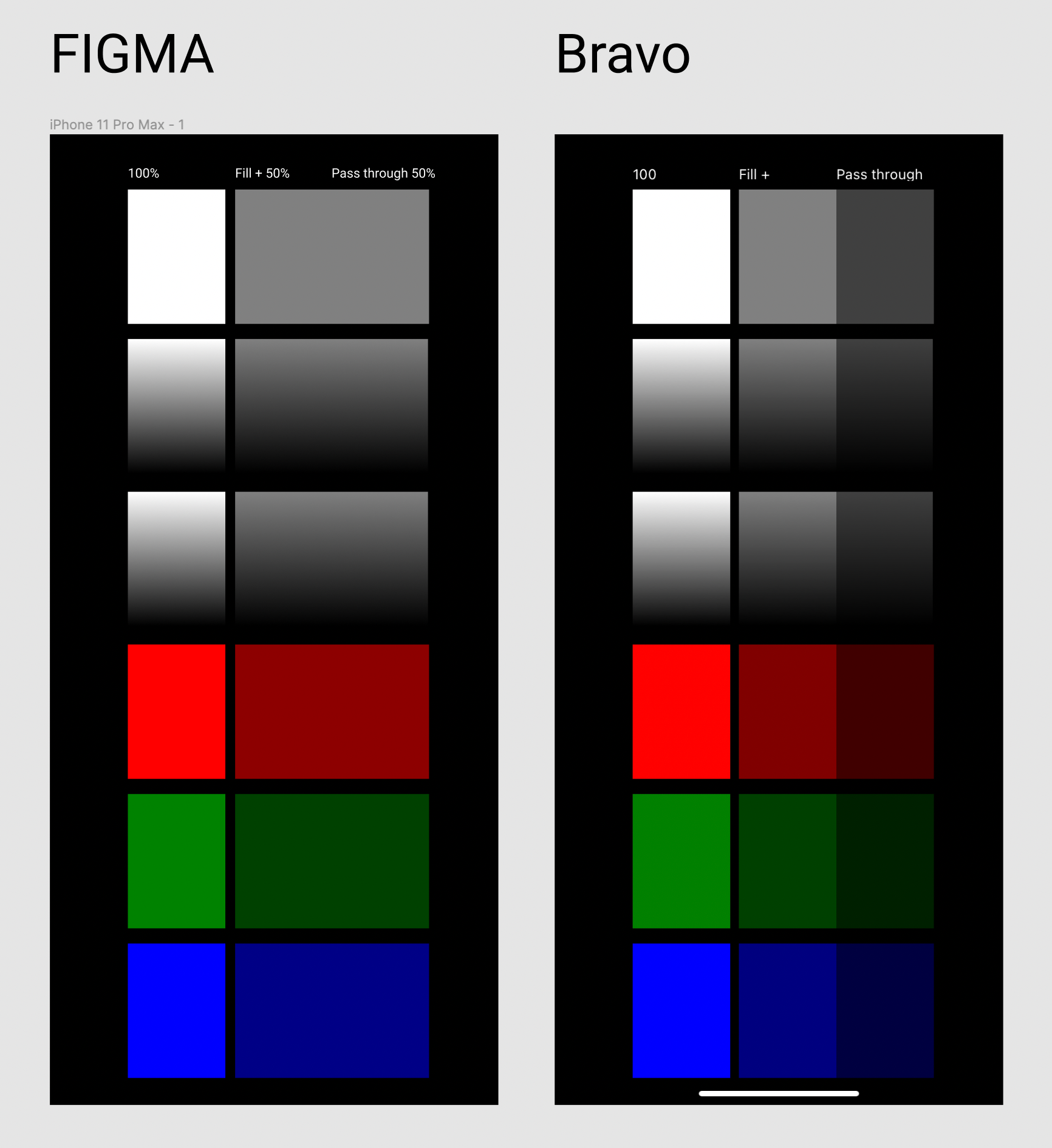
yes, here are the results:

iOS + XD

opacity-test-ios-xd.png

Android + Figma

opacity-test-android-figma.jpg

Android + XD

opacity-test-android-xd.jpg

Lukas November 13, 2021

Very nice  - this should help visualize the problem. That said, sticking with Fill opacity should be only a temporary solution I think.

What's great about Bravo Studio is that we can use our designs almost as they are - it's just a matter of framing and taging. If we'll need to remember about making our designs "Bravo-compatible", this would complicate things and increase learning curve.

Lukas November 13, 2021

It's getting crazier 🙂

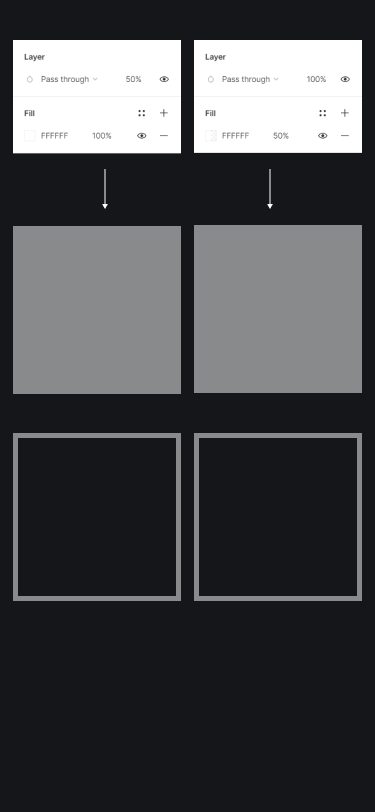
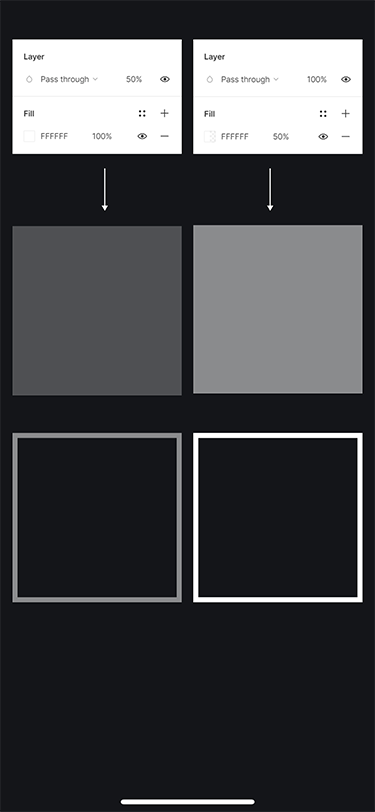
Here's how strokes react to the same settings (I didn't update Figma's Properties panel screenshots to show stroke settings but the approach is the same - Layer opacity on the left and Stroke color opacity on the right)

Figma:

stroke-opacity-test.png

Bravo Vision:

stroke-opacity-ios-figma.png

It seems to be the other way round this time 🙂 
 
And from what I can see Dashed strokes are also not supported (but this one is expected since Bravo docs suggest to outline strokes anyway).

Wrote something in this thread and want it removed? Request removal

Still stuck?

Ask the community on Discord

This archive is read-only. New questions, office hours and product updates now happen in the Bravo Discord.

Join the Discord